Viewing Users
Users with the Add/Edit Users or Delete Users permission in their Security Profile can view the list of users.
To view users click the  navigation icon and then click the Users link from the administration sub-menu. The Users tab displays containing the list of users table.
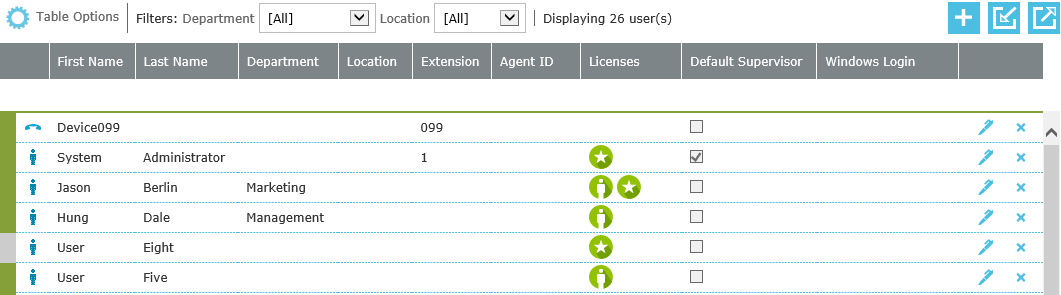
The users table contains the following data columns:
| Column | Description | ||||||||||||||||||||||
|---|---|---|---|---|---|---|---|---|---|---|---|---|---|---|---|---|---|---|---|---|---|---|---|
User Type |
One of three icons indicating whether the user is an Agent and Device user types are used when configuring agent hotdesking in Contact Center integrated systems. |
||||||||||||||||||||||
First Name |
The user’s first name. |
||||||||||||||||||||||
Last Name |
The user’s last name. |
||||||||||||||||||||||
Department |
The department of the user |
||||||||||||||||||||||
Location |
The location of the user |
||||||||||||||||||||||
Extension |
The user’s extension number. |
||||||||||||||||||||||
Agent ID * |
The external identifier when the user (Agent) is linked to a contact center agent. |
||||||||||||||||||||||
Licenses |
One or more icons indicating which licenses the user is consuming:
|
||||||||||||||||||||||
Windows Login |
The user’s windows account name which can be used for authentication if Windows Authentication is turned on. |
||||||||||||||||||||||
Email Address |
The user’s email address which can be used to receive alert notifications |
||||||||||||||||||||||
Recording Server |
The recording server name for users with recording capability |
||||||||||||||||||||||
Security Profile |
The user’s security profile name |


-
This column is only shown in Contact Center integrated systems.
|
You can hide or display columns by clicking the |
User Grouping and Filtering
The users table can be shown as grouped by Department or Location or with no grouping. Each group heading displays the number of users in each group. Use the right-hand arrows on each group header to expand or contract the group section.

|
You can hide or display columns by clicking the |
The users table can be filtered by Department or Location. Select a Department or Location from the filter lists and the users table automatically updates to only include the users associated with the currently selected filter.

The users table can also be filtered by user Status (Active or Inactive). Click the  table options link and check or uncheck the Active Users Only filter. The users table automatically updates according to the selected filter.

|
Users that are set to Inactive will be marked with a grey left-hand border in the users table e.g. 
|
See Also: