Viewing Text Translations
Users with the Playback Recording permission in their Security Profile can view text translations.
To view text translations click the  navigation icon. The Recordings tab displays containing the search criteria bar and the search results table. To view a text translation complete the following steps:
-
Change the Media Type criteria to any combination of text media types: Transcription, Email, SMS, Webchat or UCMessage.
-
Click the Search button. Any matching text recordings listed will have one of these icons:
 (Transcription),
  (Email),
  (SMS),
  (Webchat) and (UCMessage)
 -
Left click the text recording you wish to view and click the Details button in the context menu.

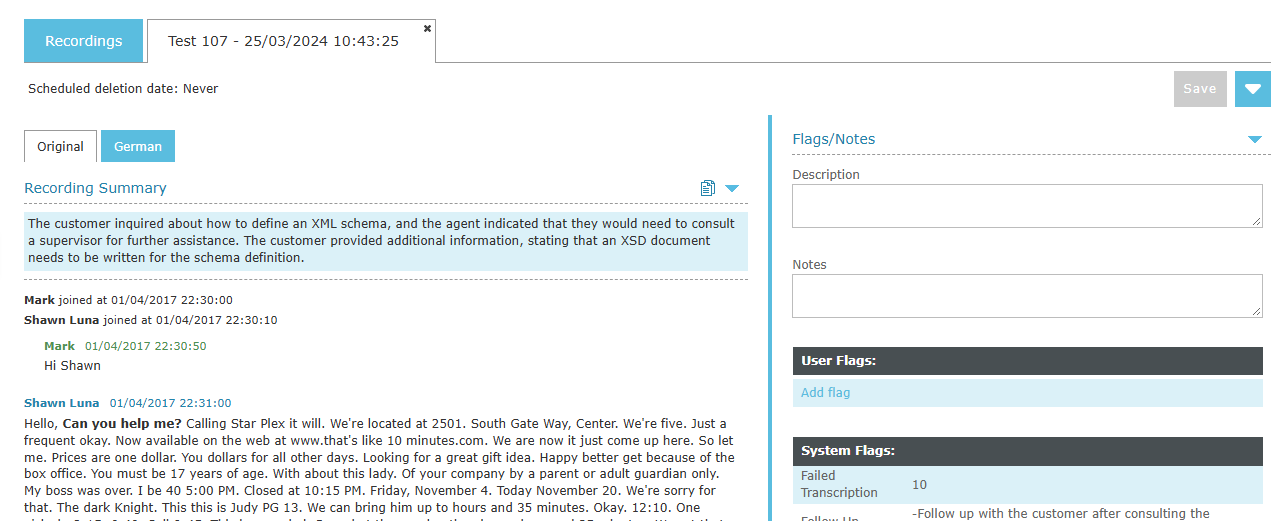
The text recording details tab is displayed, the tab name contains the user’s name and the date and time of the recording. The tabbed page displays the text contents with the name of the original text recording file below that. When one or more Translations exist for a text recording, the original text and any associated translations will each be displayed on a separate sub-tab text page. The language tabs are located above the recording summary. If the recording has an EnghouseAI generated summary, selecting a language tab displays the translated text and the translated summary. Translations created before 12.3 do not include a translated summary.
|
Users must have the Playback Recording permission in their Security Profile to view translations. If their profile also contains the Change System Settings permission they can also access the audit log events for the recording on the recording details tab. Optionally, an additional authorized user may be required to enter their credentials before playback is allowed. See Authorized User for Playback Option for more details. |
The recording details tab also contains any Flags, Description, and Notes that have been applied to the recording; you can edit these as required. If you have the appropriate permission, the foot of the page also displays the Audit Log records for the recording.
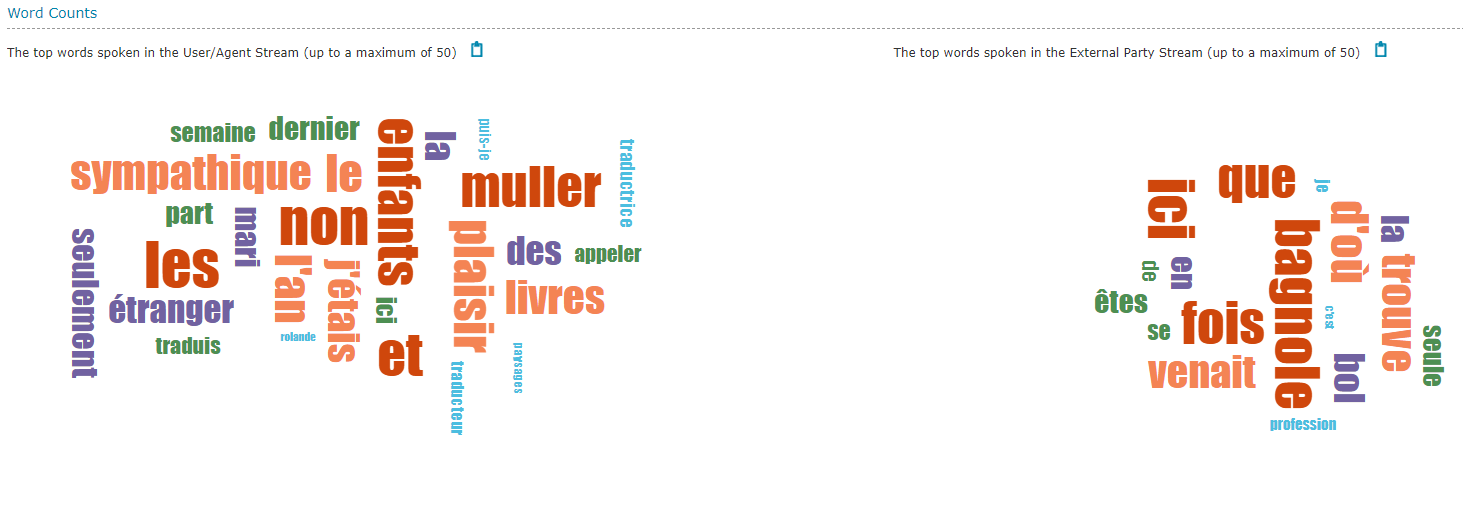
A Word Counts section may be available for certain types of text recordings if Word Counting is enabled. Two heat maps are displayed with  buttons to copy all words in the heat maps to the clipboard.
See Also: