Using Azure Blob Storage
You can now use Azure Blob Storage (cloud storage) as a remote storage location for a recording service.
To enable Azure Blob Storage click the  navigation icon and then click the Services link from the administration sub-menu. The Services tab displays containing the list of services. Select which recording service you want to enable for Azure Blob Storage and complete the following steps:
-
Click the
 button on the call recording service you wish to edit.
 -
Click the Transfer files to a remote storage location option and then click the
 button to add a new storage location
 -
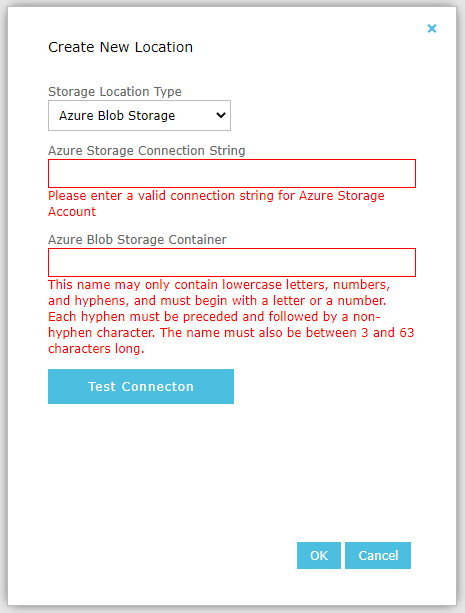
Select Azure Blob Storage in the Storage Location Type option box.
-
Complete the following required fields with your Azure information (see):
-
Azure Blob Storage Connection String – The connection string used to connect to the Azure Storage Account. This can be found in Access Keys tab for the storage account on Azure web client.
-
Azure Blob Storage Container – The name of the container used to store recording files. A container can be manually created from Containers tab for the storage account, but it’s not required as QMS will create the container automatically if it does not exist.
-
See also: