Viewing Audit Logs
Users with the Change System Settings permission in their Security Profile can view the audit log.
To view the audit log click the  navigation icon and then click the Search Audit Log link from the administration sub-menu. The Search Audit Log tab displays containing the search panel and a search results table.
To search the audit log, complete the followings steps.
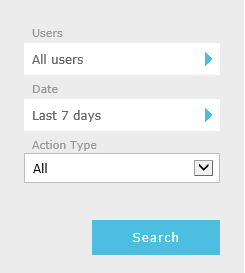
-
Select one or more Users. If you do not select any users, the records for all the users display.
-
Select the Date - the event date and time. Select one of the following:
-
Any - select this to show all events, without any date or time restrictions.
-
Last [] days - select this and enter the number of days of event data to display, counting back from present day. Enter an integer in the range 0 to 10000, with 0 representing the current day.
-
Range - select this to define a date/time range. Then define From and To dates and times.
-
-
Select the Action Type - the type of auditable action. You can display either one type of action or all actions.
-
Click the Search button. The audit search results table will display.
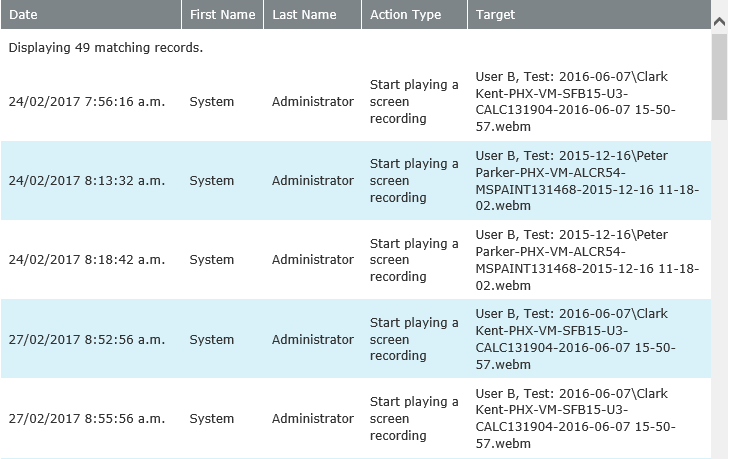
Clicking the columns headings allows you to sort the records and then toggle the sort order.
Click the  button to export the displayed records to a CSV file that is viewable in Excel.
See also:
Viewing Screen Recording Audit Log