Forked Audio – IP Phone-based Recording
Forked Audio – IP phone-based recording refers to a type of recording where audio is delivered to the QMS server via interactions between the IP phones, CUCM, the Cisco Telephony Service Provider (TSP) installed on the QMS server, and QMS itself, rather than via port mirroring. This type of recording is available only on phone devices that have Built-In Bridge functionality. The Built-In-Bridge (BIB) will fork (copy) both inbound and outbound RTP audio streams to the QMS server over a SIP trunk to allow the call to be recorded. Call Control is sent to the QMS server from CUCM via TAPI through the TSP.
|
The G.722 Codec must be enabled on the Call Manager under the 'Clusterwide Parameters (System - Location and Region)' settings. |
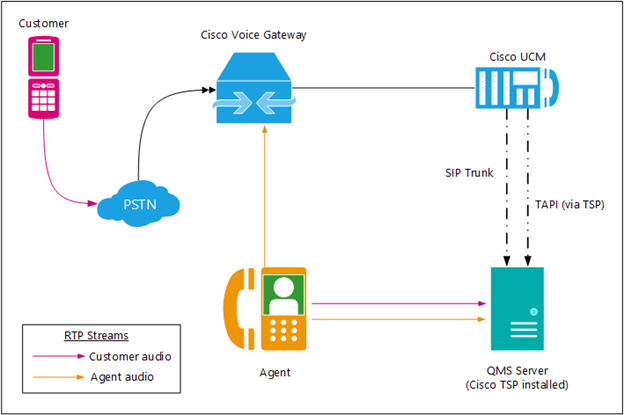
Figure 1: Forked Audio – IP phone-based recording configuration
PBX Configuration
|
The steps listed below may be slightly different, based on the version of Cisco UCM installed. |
-
SIP Profile: At least one SIP Profile should already exist within CUCM, usually named Standard SIP Profile. Unless special SIP Profile settings are needed in the environment, the Standard SIP Profile should be sufficient for connections to the QMS server.
-
SIP Trunk Security Profile: At least one SIP Trunk Security Profile should already exist in CUCM, usually named Non Secure SIP Trunk Profile. This Profile’s default settings are unencrypted and unauthenticated, incoming protocol set to TCP+UDP, and outgoing protocol set to TCP. The incoming SIP port is set to 5060. These settings are usually sufficient for a general connection to the QMS server. A new Profile can be created, if needed, for example to create a secured connection to the QMS server (see the Media Encryption section below for more information on setting up a secure connection).
-
Recording Profile: At least one Recording Profile must be created in order to provision line appearances on agent phones for call recording. A Recording Profile specifies the destination address of the QMS server, either by a directory number, which could be a route pattern, or by the URL of the QMS server. To create a Recording Profile:
-
Log into the CUCM Administration Site with a user who has permission to create Recording Profiles.
-
Click on the Device menu
-
Click Device Settings
-
Click Recording Profile.
-
Click Add New to bring up the Recording Profile Configuration view.
-
Enter a Name and a Recording Destination Address for the profile.
-
Click Save.
-
-
SIP Trunk: In a Forked Audio configuration, a SIP trunk to the QMS server is needed to send the RTP audio streams to QMS for call recording. To set up a SIP trunk:
-
Log into the CUCM Administration Site with a user who has permission to create SIP trunks.
-
Go to the Device menu, then select Trunk.
-
Click Add New.
-
Select SIP Trunk on the Trunk Type drop-down list.
-
Leave the Device Protocol and Trunk Service Type fields set to their default values, and click Next.
-
On the Trunk Configuration view, give the trunk a Device Name in the Device Information section.
-
For QMS purposes, the default values in the IME, MLPP, and Call Routing Information sections should be acceptable.
-
In the SIP Information section, specify the Destination Address (IP Address of the QMS server) and Destination Port values in the Destination sub-section. The Destination Port value must match the Incoming Port value of the SIP Trunk Security Profile specified in the next step below.
-
Select the appropriate SIP Profile and SIP Trunk Security Profile settings, from the respective drop-downs, either to the default Profiles or to Profiles that were created in sections 2 and 3 above.
-
Click Save.
-
-
IP Phones: Adding IP phones to CUCM is beyond the scope of this document. Please refer to appropriate Cisco documentation for steps on adding IP phones to CUCM. To configure a phone for recording, do the following:
-
Log into the CUCM Administration site with a user who has permission to update Phone settings.
-
Go to the Device menu, click Phone, then click a phone’s Device Name on the Find and List Phones view.
-
In the Device Information section of the Phone Configuration view, set the Built in Bridge field to On. This setting will cause the phone to send a copy of the inbound and outbound RTP audio streams to the QMS server for recording.
-
Click Save.
-
In the Association Information section, click on the Line [1] link to access the Directory Number Configuration view.
-
Scroll down to the Line 1 on Device… section.
-
Set the Recording Option field to Automatic Call Recording Enabled.
-
Set the Recording Profile to the profile created in step 3 above.
-
Click Save.
-
For any other line appearances that should be recorded, repeat steps e to i for each line.
-
Repeat for each IP phone that should be recorded.
-
-
Application User: A CUCM Application User refers to the user assigned to the Cisco Telephony Service Provider (TSP) application, which is installed on the QMS server, whose credentials will be used to create the TAPI connection between CUCM and QMS via the TSP. This connection will transfer call control events from CUCM to the QMS server. To create an Application User:
-
Log into the CUCM Administration site with a user who has permission to create Application Users.
-
Click on the User Management menu, then click Application User.
-
Click Add New to access the Application User Configuration view.
-
Enter in a User ID, then a Password (if desired), and confirm the Password.
-
In the Device Information section, select the phones to be recorded from the Available Devices list, and click the down arrow to move those phones to the Controlled Devices list.
-
In the Permissions Information section, click Add to Access Control Group to access the Find and List Access Control Groups window.
-
Click Find to bring up the full list of Access Control Groups.
-
Mark the checkboxes for the following groups:
-
Standard CTI Allow Call Monitoring
-
Standard CTI Allow Call Park Monitoring
-
Standard CTI Allow Call Recording
-
Standard CTI Allow Control of All Devices
-
Standard CTI Allow Control of Phones supporting Connected Xfer and conf
-
Standard CTI Enabled
-
-
Click Save.
-
TSP Installation and Configuration
-
Log into the Cisco UCM Administration site from the QMS server.
-
Click on the Application menu, then click on Plugins.
-
Click Find to pull up the list of all available plugins.
-
Scroll down the list, find the Cisco TAPI 64-bit Client, and click the Download link for that plugin.
-
Once the download is completed, start the installer (CiscoTSPx64.exe).
-
On the Choose Destination Location view, specify 1 for the number of TSPs to install, then click Browse to select a new Destination Folder if the default location is not desired.
-
Click Next to access the Configure TSP Instance view.
-
Enter in the User ID of the Application User created in section 7 above, along with a Password if one was entered on the Application User settings.
-
In the CTI Manager 1 field, enter in either the IP address, IPv6 address, or hostname of the CUCM server.
-
Select the address type from the drop-down, based on the type of information entered in the CTI Manager 1 field.
-
Click Next to access the Media Driver/Auto-Upgrade/TFTP Server IP Address view.
-
In the Cisco Media Driver Configuration section, change the port numbers if the default range specified would conflict with other applications or services on the network.
-
Set the Auto-Upgrade Option to the desired setting.
-
Mark the checkbox for Start Cisco TSP Notifier when Windows Starts, if not already checked.
-
Click Next to finish the installation, then reboot the QMS server when prompted.
QMS Configuration
Services Configuration
-
Log into the QMS Client as a user with permissions to create new or update existing Services information
-
Click on Services under Administration in the navigation area.
-
Select the Call Recording Service that will record the Forked Audio phones from the list of services, and click Edit.
-
Set the PBX Type to Cisco Forked Audio
-
Enter the IP address of the CUCM server in the PBX IP Address field
-
Click Save.
User Configuration
-
Log into the QMS Client as a user with permissions to create new or update existing User information.
-
Click on Users under Administration in the navigation area.
-
Click Add to create a new user, or if users already exist in the system, select a user to update from the user list and click Edit.
-
Fill out the Personal and Account Information sections.
-
Check the Call Recording check box in the Licenses section.
-
In the Call Recording Settings section, pick the name of the server used to record the user.
-
Enter the Primary Extension, Endpoint IP Address (i.e. the IP address of the phone), and any additional extensions (line appearances) the user may have.
-
Click Save, and repeat for each additional QMS user.