Post-Upgrade Configuration
Accessing the QMS website
After QMS has been upgraded, browse to the QMS website. The address defaults to http://<servername>/qms, where <servername> is the address of the computer running the QMS Data Service and QMS client website.
| It is recommended that you clear your browser’s cache once the upgrade to 12.3 is complete. The new Widget dashboard is the first to display when you login, and it will not display correctly if your browser last accessed the older version of QMS. |
Please note that after upgrade, it may take more than a minute to load the website for the first time although it should be much faster on subsequent attempts. You will be presented with the QMS login screen:
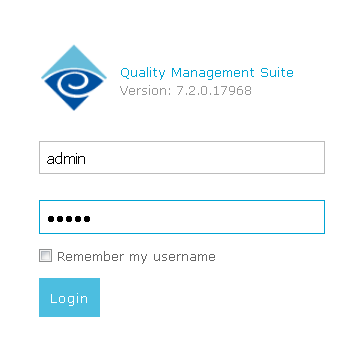
Enter your administrative user credentials to access the new client user interface. Once you have logged in, you will notice that the navigation has changed. There are up to 5 options on the left-size navigation, depending on which features you have licensed.

|
This option will bring you to the dashboard screen, where you can configure and view various statistics widgets. |

|
This option will bring you to the real-time activity screen, where you can see the current state of users or monitor their activities. |

|
This option is used to search for call and screen recordings, as well as to start new evaluations from recorded media. |

|
This option is used to find evaluations that have been started and are in-process, or evaluations that have been completed. |

|
This option is used to access reports and dashboards. |

|
This option is used to access administrative functions of the application. |
Selecting a media format
Click on the bottom-most icon to access the administration screens and then click the link to access General application settings:
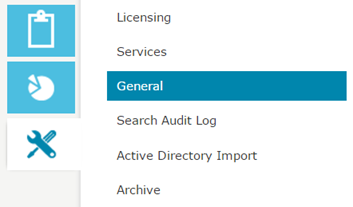
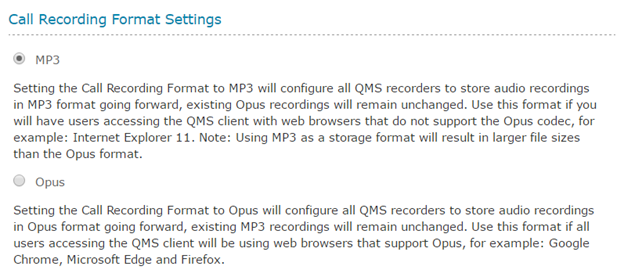
You will see the General settings page appear. Find the section called Call Recording Format Settings. Select the recording format that you would like to use:
Applying a new license key
If you are upgrading from a version prior to QMS 8.1, you will be required to apply a new license key before the software will operate. A license key can be applied by navigating to the Licensing sub-section of the Administration section in the QMS website.
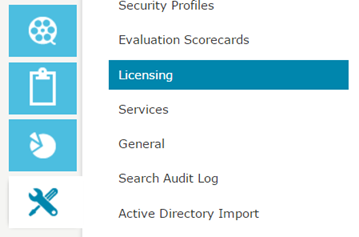
Enter your new license key into the provided box and click the Add key. Your new license should be applied.

After applying a license key, all QMS services must be restarted. This can be done through the Services control panel application that is part of Microsoft Windows. The services that must be restarted are:
-
QMS Data Service
-
QMS Call Recording Service
