Searching Evaluations
To search for evaluations, click the  navigation icon. The Evaluations tab displays containing the search criteria bar and the search results table. To perform an evaluation search complete the following steps:
-
Click the Search button. The evaluations satisfying the search criteria are listed.
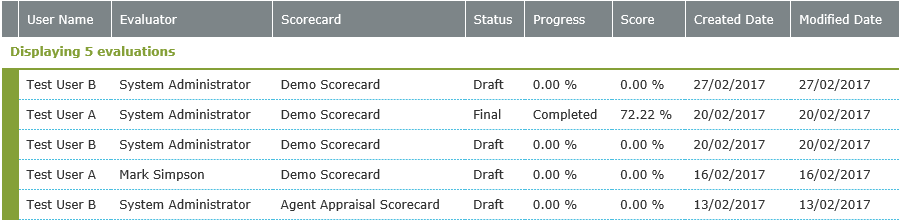
The Search results table displays containing all the data columns made visible in the Table Options dialog. The data items include:
| Column | Description |
|---|---|
Icon |
An icon indicating the type of evaluation:
|
User Name |
Name of the user being evaluated |
Evaluator |
Name of the supervisor performing the evaluation. |
Assigned To |
Restrict search results to the user or users to whom the workflow state is currently assigned. |
Workflow |
Name of the workflow being used for the evaluation (empty if not using a workflow) |
State |
Name of the workflow state the evaluation is currently in (empty if not using a workflow) |
Scorecard |
Name of the scorecard being used for the evaluation. |
Mode |
Displays whether the evaluation is in Draft, Final or Calibration mode. |
Progress |
Displays the progress percentage of Completed if the evaluation is complete. |
Score |
Displays the score for the evaluation. |
Due Date |
Displays the due date for the evaluation if one is set (only applies to certain workflow states or calibration jobs) |
Created Date |
Date the evaluation was created. |
Modified Date |
Date the evaluation was last modified. |
Media Date |
Date of the first piece of attached media used in the evaluation. |
Notes |
Note attached to evaluation. |


Click on an evaluation search result to select it. Left click on a selected search result to bring up the context menu:
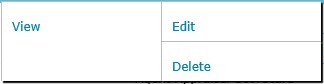
The evaluation search results context menu contains the following commands:
|
The evaluator is the only individual who has the ability to edit the evaluation by opening an edit evaluation page. If the evaluator is not the currently logged in user, then clicking the View button allows you to view the evaluation by opening an edit evaluation page in read-only mode. |
See Also: