Configure Azure VM
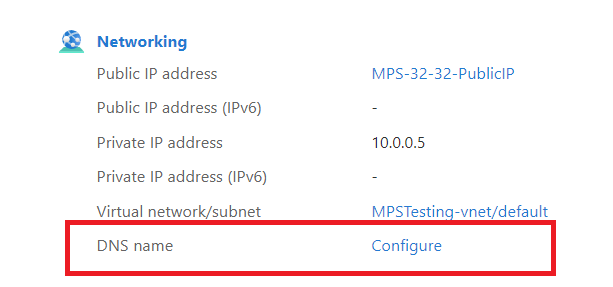
Once the VM has been created, it should be accessible from the "Home → Virtual Machines" page in Azure. On the Virtual Machines page click on the newly created VM, which will allow you to further configure the VM. On the configuration page click on the "DNS name" field to configure it:
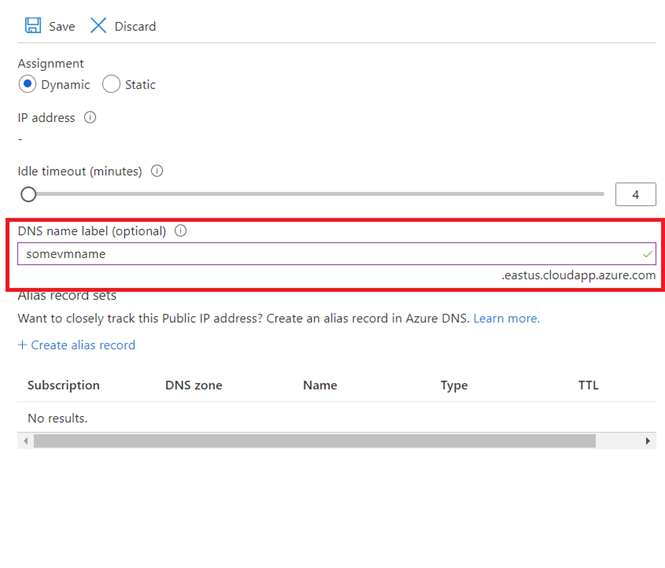
This will take you to the Public IP address Configuration page which will allow you to configure the DNS name for the VM. Enter a DNS value, typically the machine name in lower case, and click Save:
Next, you need to configure the inbound ports for the Teams Native Recording integration. To do this we need to go to the Networking in the VM settings and click on "Add Inbound port rule":

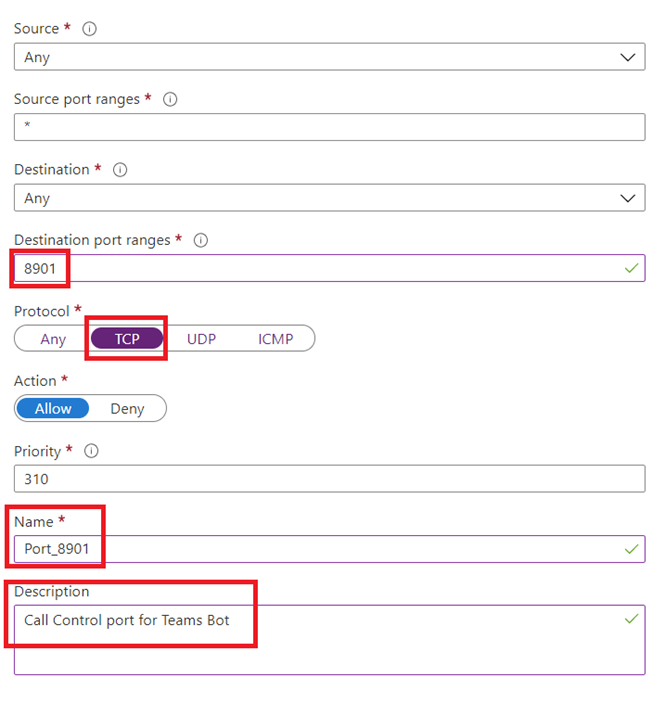
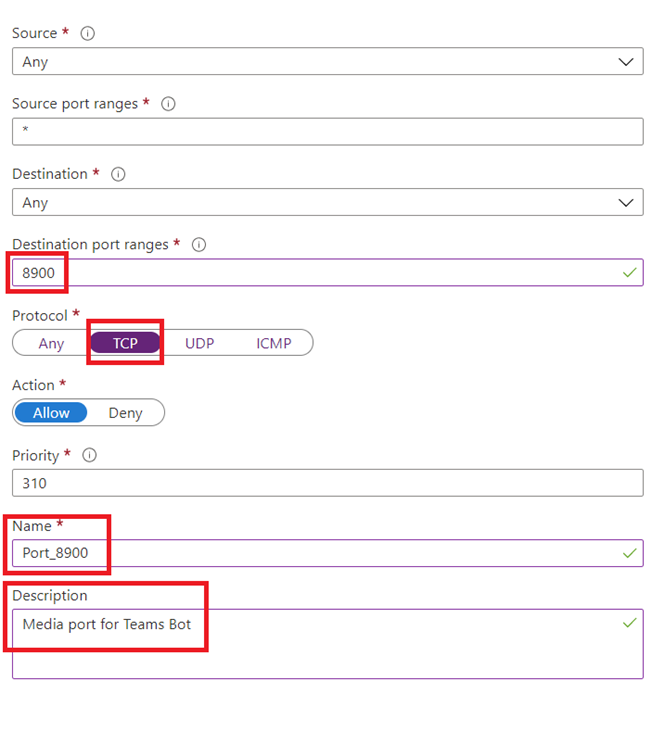
You will need to add 2 ports you will also enter these ports into the QMS Call Recording Service configuration later:
-
8900 TCP — Teams Media Port
-
8901 TCP — Teams Call Control Port
Teams Media Port:
Teams Call Control Port: