Reports
You can configure any saved report to send an email to the email addresses provided on a schedule. The email addresses specified must be destinations that are reachable by the Data Service Mail Server (Email Server) and defined in the General Settings administration tab. The schedule defines the frequency and delivery date and time.
To schedule a report, complete the following steps.
-
Load a saved report into the report viewer.
-
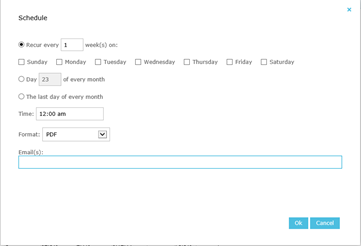
Click the Schedule button located at the top right of the report details tab. The report schedule dialog will display.
-
Define the desired report schedule using the options provided.
-
Enter the recipients email addresses, separated with a comma.
-
Click the Ok button to close the schedule dialog.
-
Then you must click the Save button located at the top right of the report details tab to save the schedule to your saved report.
The following reports are most applicable to system monitoring in this manner:
| Alert Type | Description |
|---|---|
Total Counts |
Shows the total counts of recordings made. You can filter the report by media type, date, direction, users, departments, locations and status. |
Users Not Recording |
Shows the users that have not recorded in the configured timespan. |