Register the Azure Bot
| There will only be one Azure Bot created to point to each QMS Call Recording Service, and the bot should typically be created in the same Azure Tenant where the QMS Azure VM is created. A single Call Recording Service can still record calls from multiple Teams Tenants. This capability is provided by the bot’s Microsoft Entra ID app registration being configured as multitenant (see the app registration step later in this section) together with a Teams Tenant admin granting consent in each tenant. It is not controlled by the Azure Bot resource’s "Type of App" setting described below. |
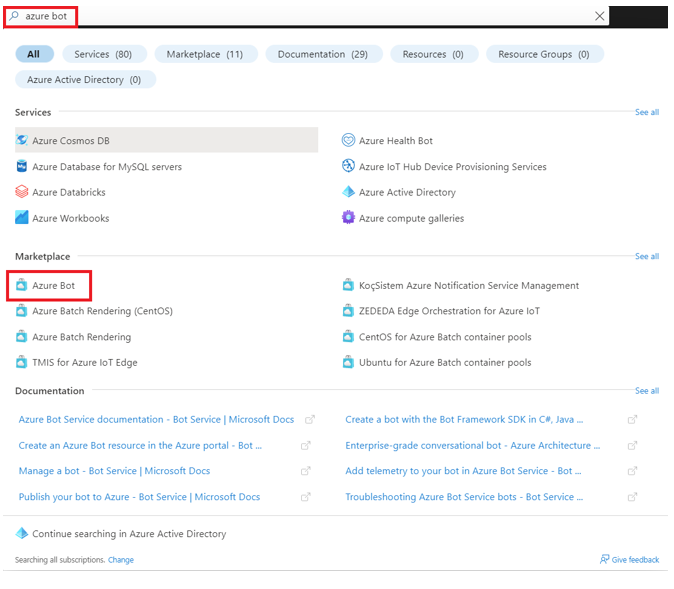
In order for the QMS Recording Service to be able to receive call control and audio from Teams, we need to configure the compliance recording bot in Azure. To do this, first search for "Azure Bot" in the Azure search bar and click on "Azure Bot":
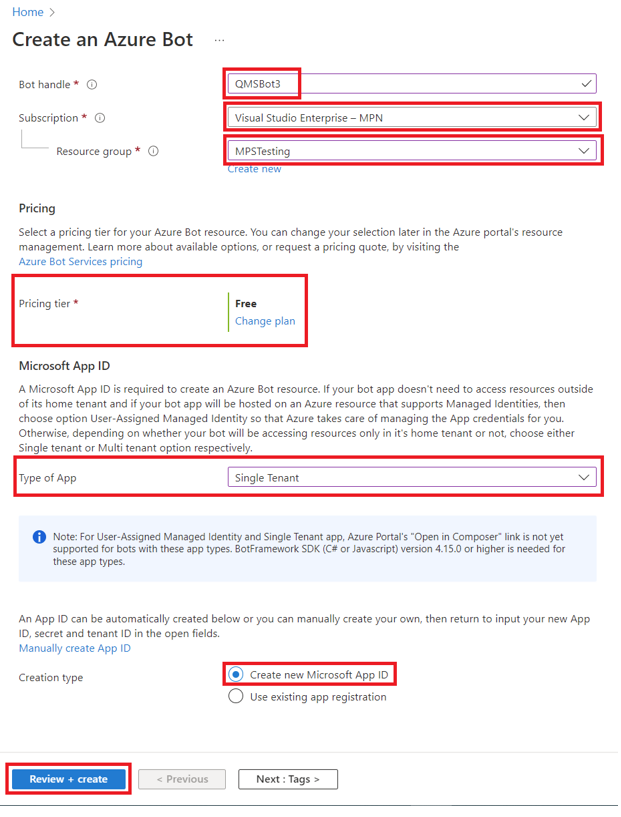
Next, on the bot configuration page, provide the following details and click create:
-
Choose a handle for the bot.
-
Select a subscription.
-
Select the resource group to be used for the Bot.
-
Select the F0 pricing tier.
-
For the Type of App, select Single Tenant.
-
Select "Create New Microsoft App ID"
|
Select Single Tenant even when the Call Recording Service will record calls from multiple Teams Tenants. Microsoft deprecated the creation of new Multi Tenant Azure Bot resources after July 31, 2025, and the Azure portal no longer allows this option to be selected for new bots. Support for recording additional Teams Tenants is instead provided by configuring the bot’s app registration as multitenant (see the app registration step later in this section) and by granting admin consent in each Teams Tenant. |
After selecting the options in the Create an Azure Bot page, click "Review + Create" which will take you to the confirmation page. If the options are all correct, click "Create" to create the Azure Bot. Once the Azure Bot has been created, go to Bot Services in the Azure Services list or search for Bot Services in the Azure search bar.

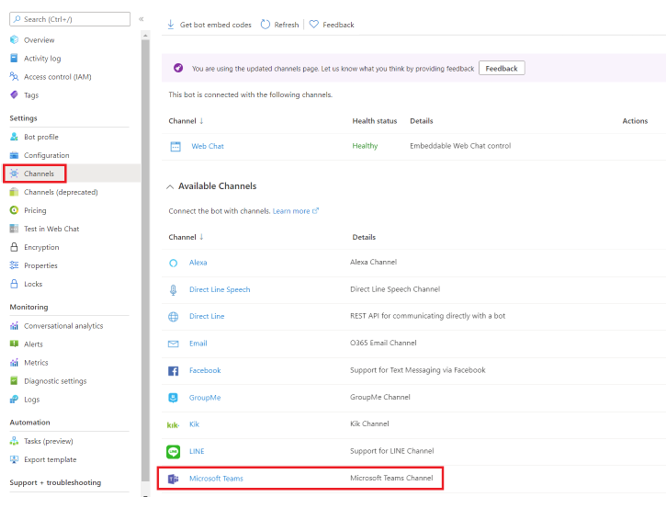
Next, select the bot and go to Channels and select the Microsoft Teams channel:
Next, agree to the terms of service and leave the Microsoft Teams Commercial option selected under Messaging:
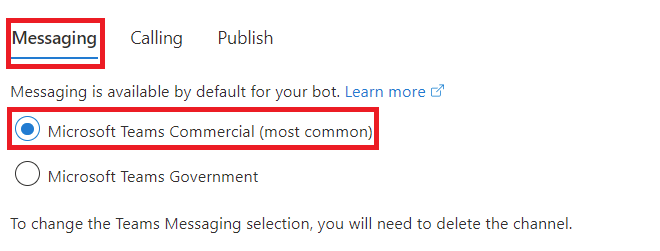
Next, in the Teams channel configuration set the following and click Apply:
-
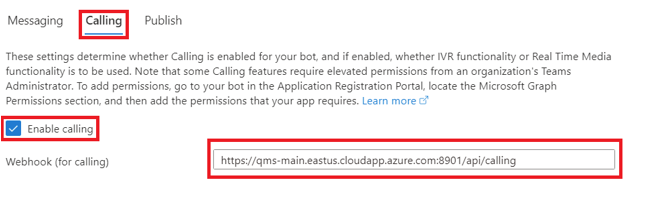
Select "Calling".
-
Make sure "Enable calling" is selected.
-
Enter the webbook URL. This should take the form of https://<FQDN>:8901/api/calling where FQDN is that of the QMS VM hosting the Call Recording Service (change the port if you are using a different Call Control port than the default port above). The FQDN value must also match the subject of the certificate.
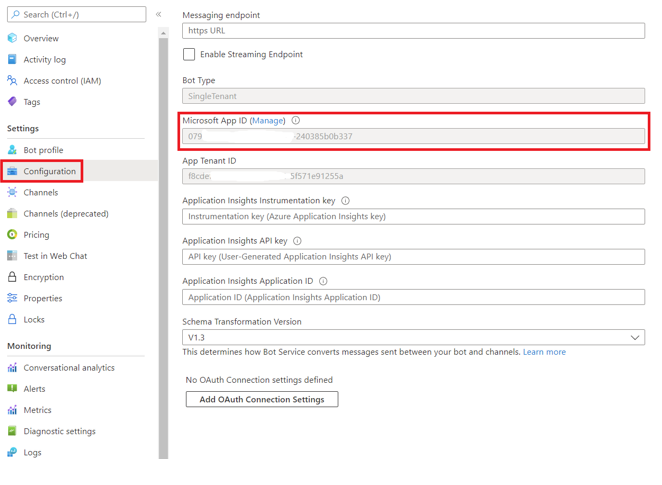
Next, select Configuration and find the Microsoft App ID. Copy this ID for later use in the QMS config, and click on Manage:
Next, go to "Certificates & Secrets" and click on "New client secret":
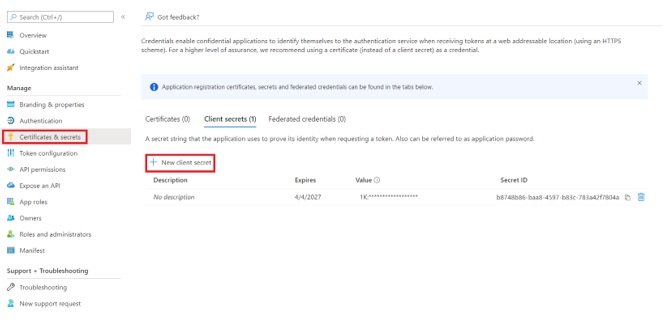
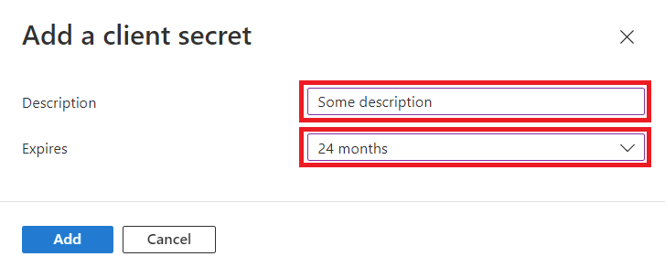
Once you have clicked on new client secret, the Add a client secret dialog will open and you will need to provide a description and an expiration and click Add:
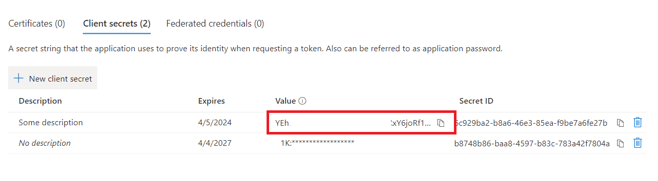
Once the secret has been generated, make sure that you copy the secret for use later when configuring the Call Recording Service in QMS:
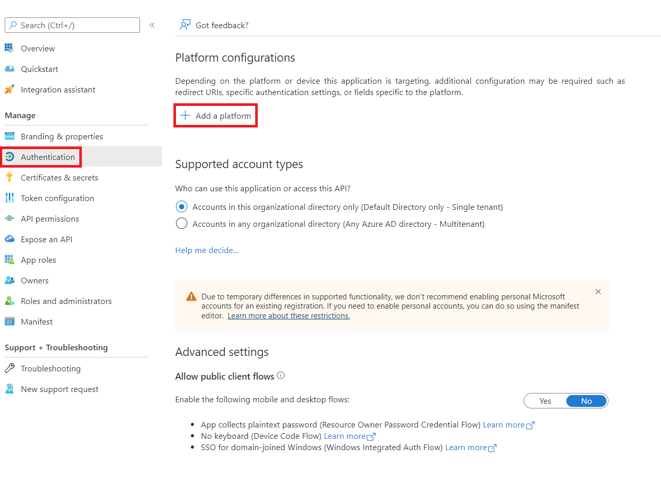
While still in the Manage App area, click on "Authentication" and then click on "Add a platform":
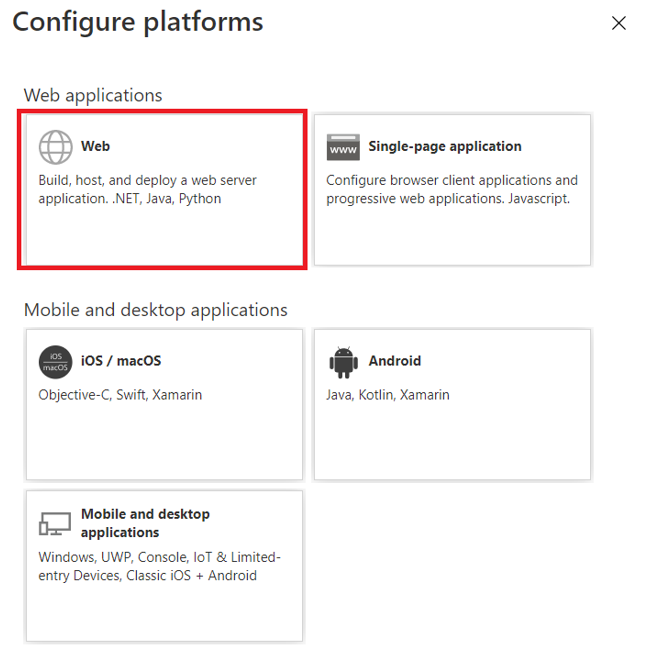
In the Configure platforms dialog select "Web":
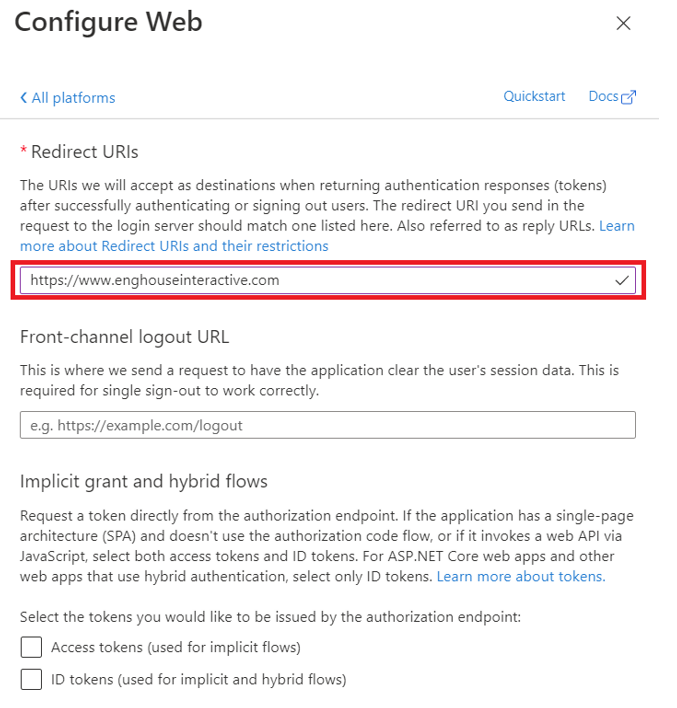
In the Configure Web dialog set the Redirect URIs to https://www.enghouseinteractive.com/ which will be used later in the consent URL and must match the value used in the consent URL. Then click configure:
While still on the "Authentication" blade, if this Call Recording Service will record calls from more than one Teams Tenant, or from a Teams Tenant other than the one hosting the bot, locate the "Supported account types" section and select Multiple Entra ID tenants. Leave the sub-option set to Allow all tenants, then click Save. This allows a Teams Tenant admin in each additional tenant to grant consent to the bot using the consent URL described below. If the bot will only ever record the single Teams Tenant that hosts it, this setting can be left at the Single Tenant only default.
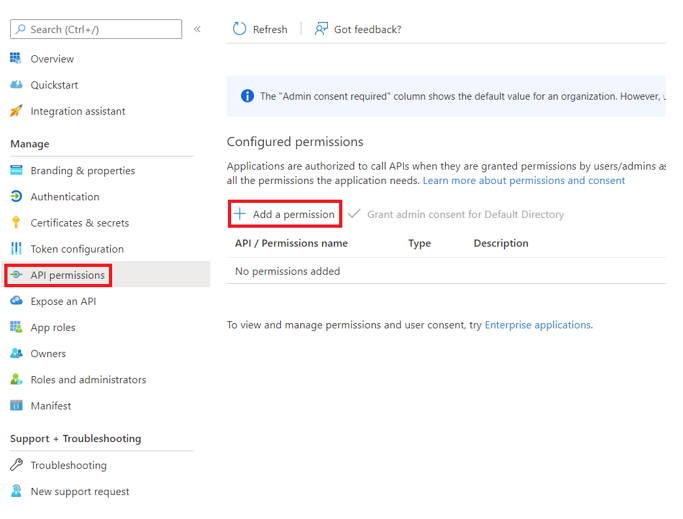
While still in the Manage App area, click on "API Permissions" and then click on "Add a permission":
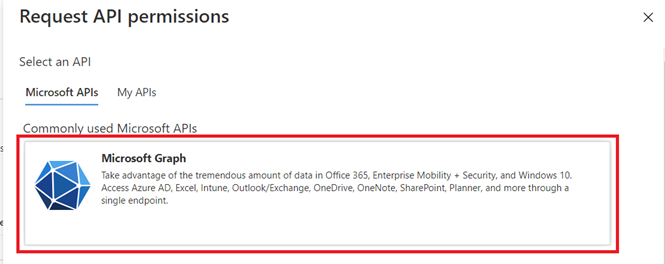
In the API Permissions dialog select "Microsoft Graph":
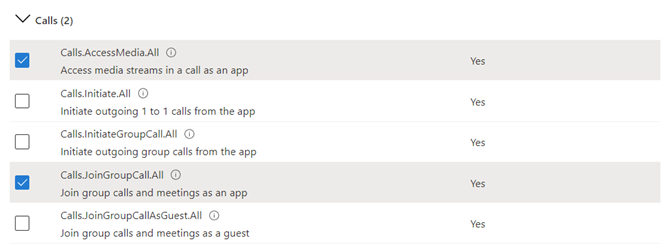
Select "Application permissions" and select the following permissions:
Calls
-
Calls.AccessMedia.All
-
Calls.JoinGroupCall.All
User
-
User.Read.All
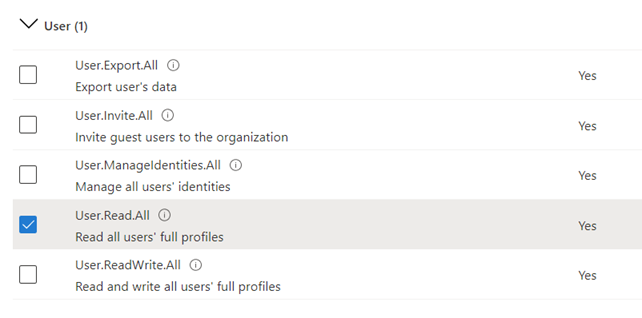
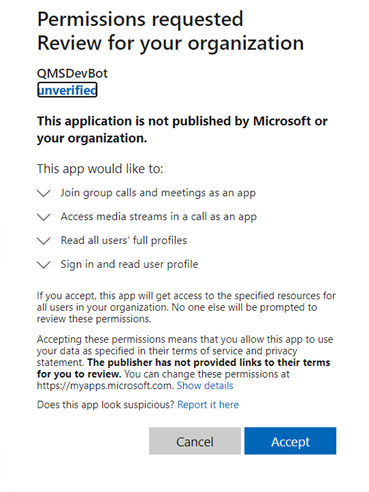
Once the permissions have been added to the bot (and any time in the future when changes may be made to the permissions granted), you will need to have a Teams Tenant admin accept the permissions. To do this you must go to a consent URL that is built using your Teams Tenant ID and the Application ID for the Teams Bot created above. The URL will take the form of:
https://login.microsoftonline.com/<TenantID>/adminconsent?client_id=<BotAppID>&state=12345&redirect_uri=https://www.enghouseinteractive.com/-
The TenantID should be your Microsoft Teams Tenant ID.
-
The BotAppID should be the App Id from the Bot channel registration performed earlier.
Once you have the consent URL built, enter it into a Web browser, which will prompt you to login using your Teams Tenant admin user information, accept the permissions. If registration is successful, you will be redirected to https://www.enghouseinteractive.com/. If configuring the QMS Call Recording Service to record multiple Teams Tenants, the consent URL steps will need to be repeated for each Teams Tenant.