Alerting System
The new alerting system in QMS 8.0 and above offers flexible and tailored alerts per user. Each user in QMS with the Configure Alerts permission in their security profile can access and create alerts using this system. Users with both Configure Alerts and Change System Settings permissions are allowed to see all configured alerts in QMS, including those configured by other users.
These alerts can be delivered by email, client toast notification or client dashboard log (or all of these).
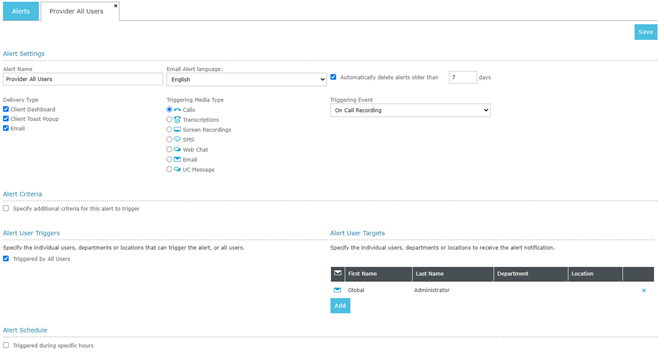
To add an alert click the navigation icon and then click the Alerts link from the administration sub-menu. The Alerts tab displays containing configured alerts that the user can see. To create a new alert, complete the following steps:
-
Click the Add Alert button located at the top of the Alert table.
-
A new tab will open with New Alert as the tab title.
-
Enter a valid Alert Name.
-
Select at least one Delivery Type from the following options:
-
Client Dashboard – Alert notifications will be shown in the Alert Log widget on the client dashboard
-
Client Toast Popup – Alert notifications will be delivered in real-time via toast popups that will appear on the bottom-right corner of the QMS web client, no matter which page the user is on. Note Client Dashboard option will be selected automatically when Client Toast Popup is selected.
-
Email – Alert notifications will be delivered via emails. Note if only Email is selected as the delivery type, alert notifications will not be stored into QMS database and hence they will not be shown in the Alert Log widget on the client dashboard.
-
-
Select a Triggering Media Type from the list. This defines the media that can trigger alert notifications for this alert.
-
Depending on the Triggering Media Type selected, different triggering events will be available in Triggering Event dropdown list. A trigger event defines when alert notifications should be triggered.
-
(For Email alert notifications only) Select a preferred language for alert notifications delivered via email.
-
An alert can be configured to be fired only when certain criteria based media metadata are met. To specify alert criteria, check Specify additional criteria for this alert to trigger and add required alert criteria. Multiple criteria can be grouped and joined using AND / OR / NOT OR / NOT AND if required. If this option is not checked or there’s no additional alert criteria specified, the alert will always be fired.
-
Select users that can trigger the alert or select Trigger by all users to allow all users to trigger alert notifications.
-
Select target users who will receive alert notifications. Departments and Locations can be added to allow all users in the department or location to receive alert notifications.
-
(Optional) Configure the alert to be triggered only on specific days / hours by checking Triggered during specific hours
-
Click the Save button on the action bar located at the top right of the alert editing tab. The tab will refresh and the alert name will now display as the tab title.
|
If using email alerts, the email server settings must be configured under the General settings of the Administration section of the web client. See General Notifications above. |
|
This category of alert is generated by the Data Service. If the Data Service is not running these alerts will not be triggered. |
The following notifications can be triggered by this category of alert:
| Alert Type | Description |
|---|---|
On Flag Received |
Fires an alert whenever a specified flag is attached to a call, screen or text recording. |
On Call Recorded |
Fires an alert whenever a recording for a call that meets all the alert criteria is started. |
On Call Termination |
Fires an alert whenever a call terminates and all the alert criteria (if any) are met. This is fired no matter if the call is recorded or not. |
On Call Not Recorded |
Fires an alert whenever a call that meets all the alert criteria (if any) terminates and has not been recorded. |
On Screen Not Recorded |
Fires an alert whenever a triggering user has no active Desktop Agent registered with QMS or no concurrent screen recording license is available (if the user is assigned a concurrent screen recording license) when a screen recording that meets all the alert criteria (if any) is requested. |
On Text Recorded |
Fires an alert whenever text media that meets all the alert criteria is recorded. |
On Text Not Recorded |
Fires an alert whenever text media that meets all the alert criteria ends and it is not recorded. |
On Transcription Completed |
Fires an alert whenever a transcription job is completed for a call that meets all the alert criteria (if any). |
Concurrent Licensing Count |
Fires an alert whenever the count of available concurrent licenses falls below a configured threshold. |