Provisioning Users for Screen Recording
You can configure the Screen Recording feature for each user from the Quality Management Suite Client.
Starting the Quality Management Suite Client
To start the Quality Management Suite Client, complete the following steps.
-
Open your Internet browser and navigate to the Quality Management Suite application at http://localhost/qms. Substitute the appropriate server name or IP address for the qms portion of the URL – use "localhost" if running the browser on the primary Quality Management Suite application server.
-
Enter admin in the Username field.
-
Enter admin in the Password field.
-
Click Login.
The Quality Management Suite Client should open with administrative credentials and display the dashboard view.
Verifying available Screen Recording licenses
This guide assumes the Quality Management Suite installation has already been provisioned with a license key that includes one or more Screen Recording licenses and at least one of those licenses is available for assignment to a user.
To verify the availability of Screen Recording licenses, complete the following steps.
-
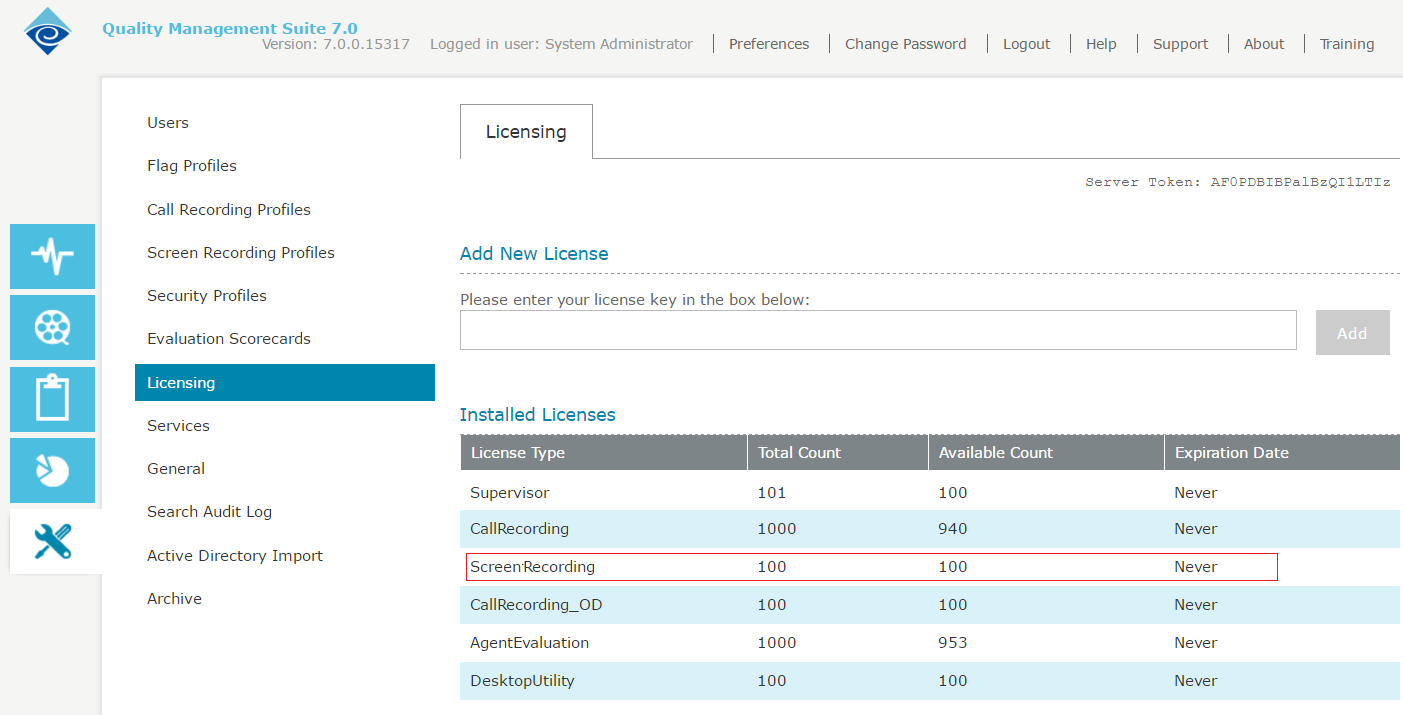
Select Administration icon from the left-side navigation toolbar and click the Licensing option. The Licensing tab displays.
-
Verify that Screen Recording is included in the list of Installed Licenses and that value in the Available Count column is greater than zero.
For example, in the following screenshot, the installed Licenses list indicates 100 Screen Recording licenses exist and that 100 are available.
If your installation has no Screen Recording licenses, then a new license key that includes Screen Recording licenses must be obtained. For instructions on updating your license key, please refer to the Quality Management Suite Licensing page in the User Guide. If you have Screen Recording licenses but none are available, then you can select a user already assigned a Screen Recording license and review the user’s settings as we proceed through the next section.
Provisioning Screen Recording on a User
To provision Screen Recording on a user, complete the following steps.
-
From the navigation toolbar, select Administration\Users to display the Users tab. From the list of users, select the user on which you will provision Screen Recording and then click Edit.
|
If you need to add users, please refer to the Quality Management Suite User Guide for instructions on provisioning new users. |
The edit user tab displays for the selected user.
-
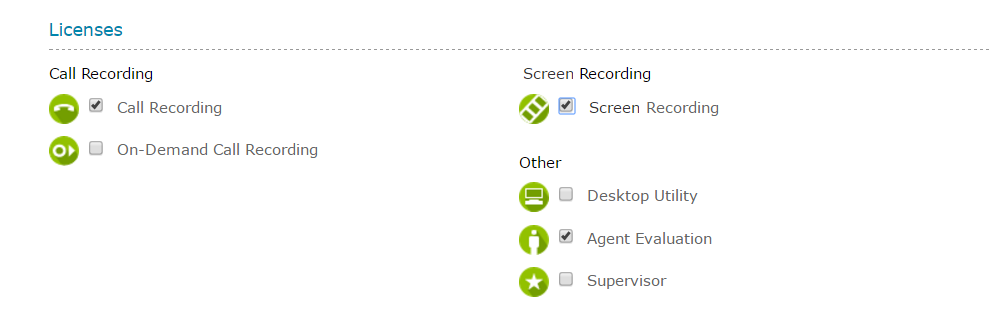
In the Licenses section, select the Screen Recording checkbox.
-
Enter the Windows Login for the user.
|
If recording performs on computers in a MS-Windows domain, then the user’s domain username should be entered as the Windows Login using the format Domain_Name\User_Name. |
-
Click the Save button to save the user’s new settings.
|
The user was automatically made a member of the current default Screen Recording profile. If a different Screen Recording profile is required, please refer to the Quality Management Suite User Guide for instructions to change it. |
The provisioning of Screen Recording for the user is now complete. Screen Recording also requires that the (Screen Recording) Desktop Agent service is installed on the PC or PCs on which the user works. The next section explains how to deploy the Desktop Agent.