Microsoft Entra ID Configuration
The following steps are required to prepare a Microsoft Entra ID (previously called Microsoft Azure AD) server for integration with QMS Third-Party Authentication.
-
Log in to the customer’s Microsoft Azure tenant administration, using an account with Global Admin permissions.
-
Create and register a new Application. Using the left-hand menu, navigate to App Registrations. The App Registration screen displays, select New Registration. You will need to enter a Name and the Supported Account Types.

|
It is recommended to set the Supported Account Types field to Accounts in this organizational directory only to limit access only to accounts in this specific organizational directory. |
-
Copy Endpoints for QMS configuration. Click on the Endpoints link to see the URL’s that need to go into the QMS SSO configuration settings. Copy the (V2) authorization and token OAuth endpoints into the Auth Endpoint and Token Endpoint settings in QMS’s Third-Party Authentication Settings page.
Note: The QMS dataservice must be able to reach the Token Endpoint.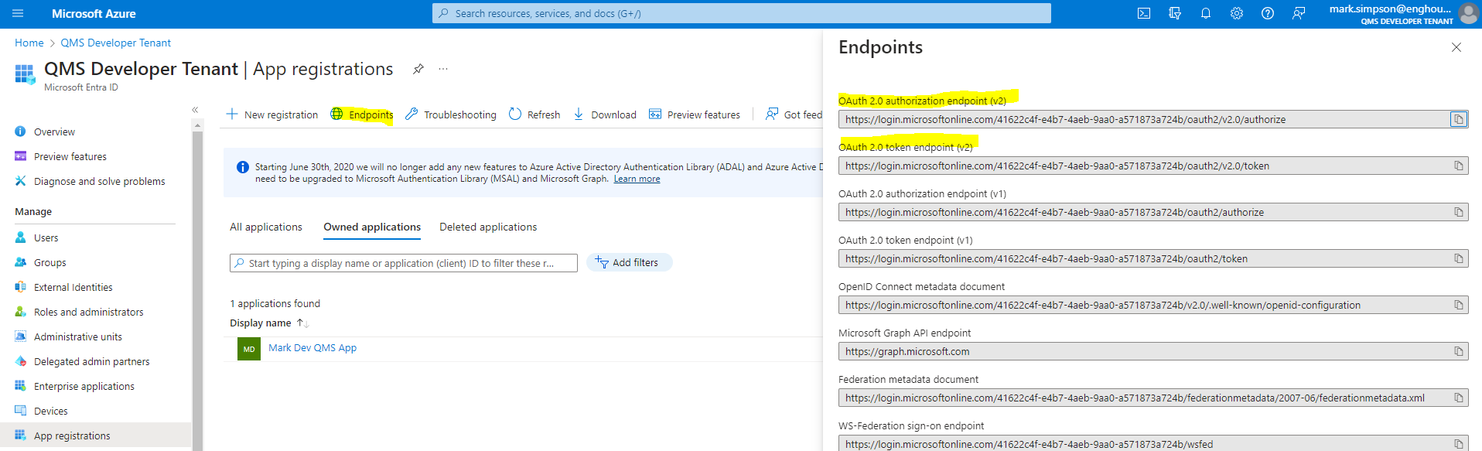
-
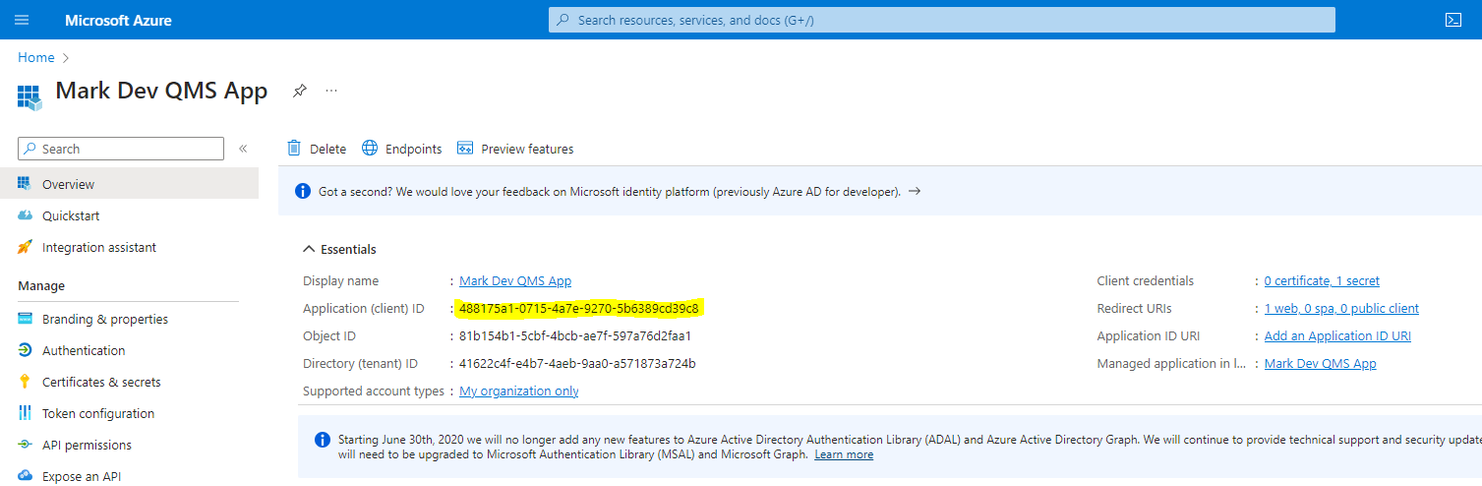
Copy the Application Client ID to go into the QMS configuration, as shown in the screenshot below, into QMS’s Third-Party Authentication Settings page.
-
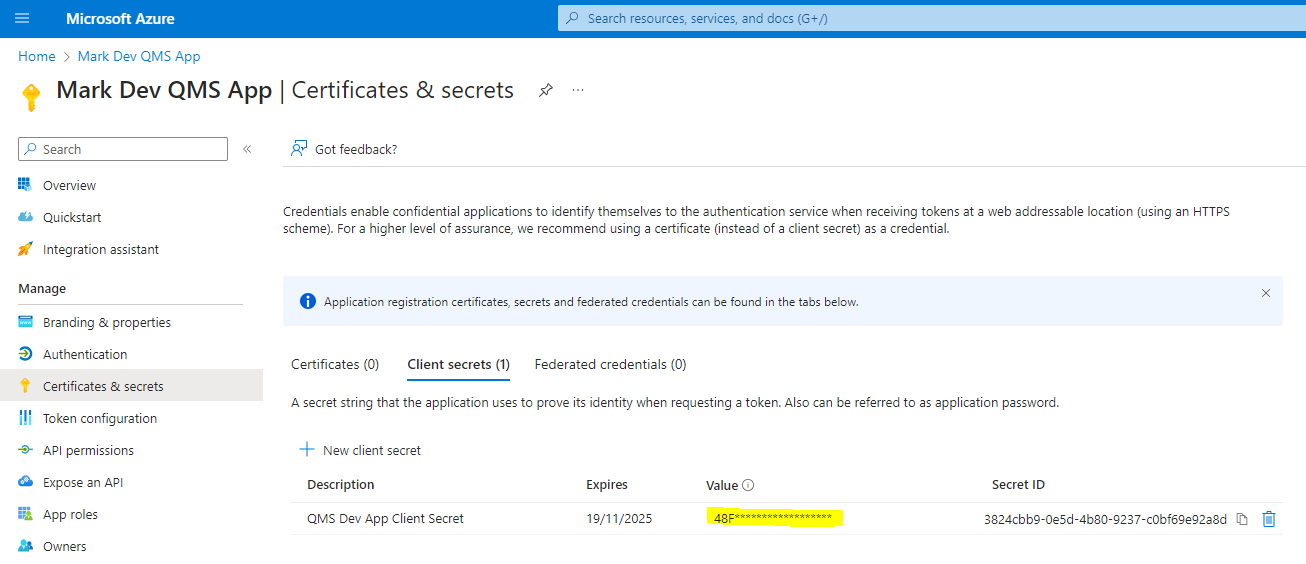
Create a new Client Secret. Using the left-hand menu navigate to Certificates and Secrets. Add a new secret with a description and expiry date of your choice. Then, click the Add button. Copy the client secret into QMS’s Third-Party Authentication Settings page.
|
Note that Microsoft only lets you see the secret once upon creation, you cannot go back and see this secret again, so make sure you copy it down immediately. |
-
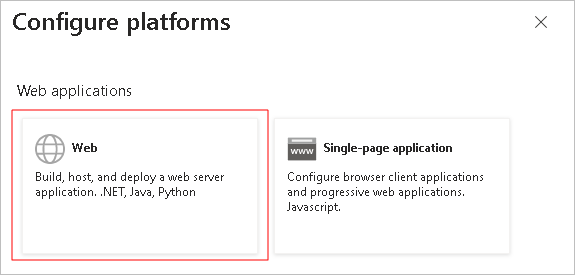
Configuring the Redirect URI. On the Application screen menu, select, the Authentication option on the menu. The Authentication screen displays. Select Add a platform. The Add a Platform dialog box displays. In the Redirect URIs field, enter the redirect URI of the QMS server using the format below:
https://[Your QMS Website URL]/Account/SSOCallback
|
The redirect URI entered here must exactly match the redirect URI for the QMS application, including using the same capitalization. QMS must be running under https to be allowed to enter a redirect URI with Microsoft. Capitalization also affects how users access QMS. Unless the SSO:PathBases setting is configured, QMS builds the redirect URI from the address in the user’s browser. See Configuring the Redirect URI Path Base below. |
Configuring the Redirect URI Path Base
This section is optional and only needed if users may browse to QMS using a different capitalization than the one registered above, which would otherwise prevent them signing in.
-
On the QMS web server, open appsettings.json and add the SSO section.
-
Add one PathBases entry for each tenant virtual directory, using the capitalization registered above.
"SSO": { "PathBases": [ "QMS", "COSMO", "SALES" ] }, -
Save the file. Next login will take into account the new setting.