Viewing Reports
Users with the Reporting permission in their Security Profile can view and run any report.
To view and run a report click the  navigation icon and then click the Reports tab. The reports tab is displayed showing the list of available Call Recording Reports and Agent Evaluation Reports.
To run a report, complete the following steps.
-
Click the report type link or the icon beside the desired report type to select it. A new tab for the selected report type displays.
-
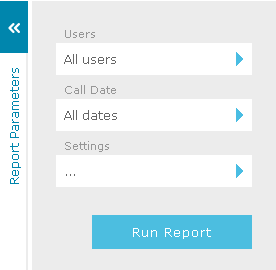
Define the parameters for the selected report type. The report parameter options will differ depending on the report type selected.
-
Click the Run Report button to generate the report.
|
Use the |

The report will generate and display in the report viewer:

Click the Print Preview button  in the report viewer to see how the report will look when printed. A preview of the report displays for you to inspect it. Click the button again to toggle back to the normal report view.
Click the Print button  in the report viewer to print the report. The print window displays with a printable version of the report
Click the Export button  in the report viewer to export the report to one of the available offline formats.
Click the Zoom buttons  in the report viewer to zoom in/out or toggle full page or page width.
Select from the Format dropdown list to display the report using both charts and table data, tables only or charts only.

See Also: