Changing Your Password
To change your Quality Management Client password, click the  link located in the top header bar. You need to be currently authenticated in order to change your password. The Change Password dialog will display.
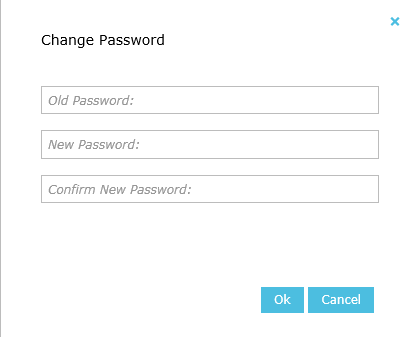
To change your password, complete the following steps.
-
In the dialog box, enter your Old Password field, your New Password field, and enter your new password again in the Confirm New Password field. The passwords you enter are masked for security.
-
Click the Ok button to change the password and close the dialog.
|
If the confirmation password does not match the new password, your password is not changed and an error message displays. |
If you have forgotten your password and your administrator has enabled the Allow users to reset forgotten passwords option in the Security Settings, you can reset it yourself. Email Settings must be configured and your user account must have a valid email address.
|
Valid password characters in QMS are:
|