Viewing Transcriptions
Once the transcription is completed, opening the recording will show both the call audio and the transcribed data. The transcribed data will appear just below the call audio. The Transcription Media window will display the data that is received from the transcription engine. This will include an indication of who is speaking. In most cases, there will only be 2 speakers on a call, but for conferencing and such, there may be more than two. QMS assigns a color to each speaker to help differentiate who is talking.
The transcription engine will also segment the conversation, splitting it into phrases. The transcription engine will create a new segment when the speaker switches or if it detects a pause in the speaker. Each segment that the transcription engine provides also includes a time stamp, so the administrator can see exactly when within the call the phrase occurs. This information along with the transcribed text will appear in the Transcription Media window.
In addition, there will be a sound icon in front of each phrase segment. Clicking this icon will initiate play of the call audio at that exact point in the conversation.
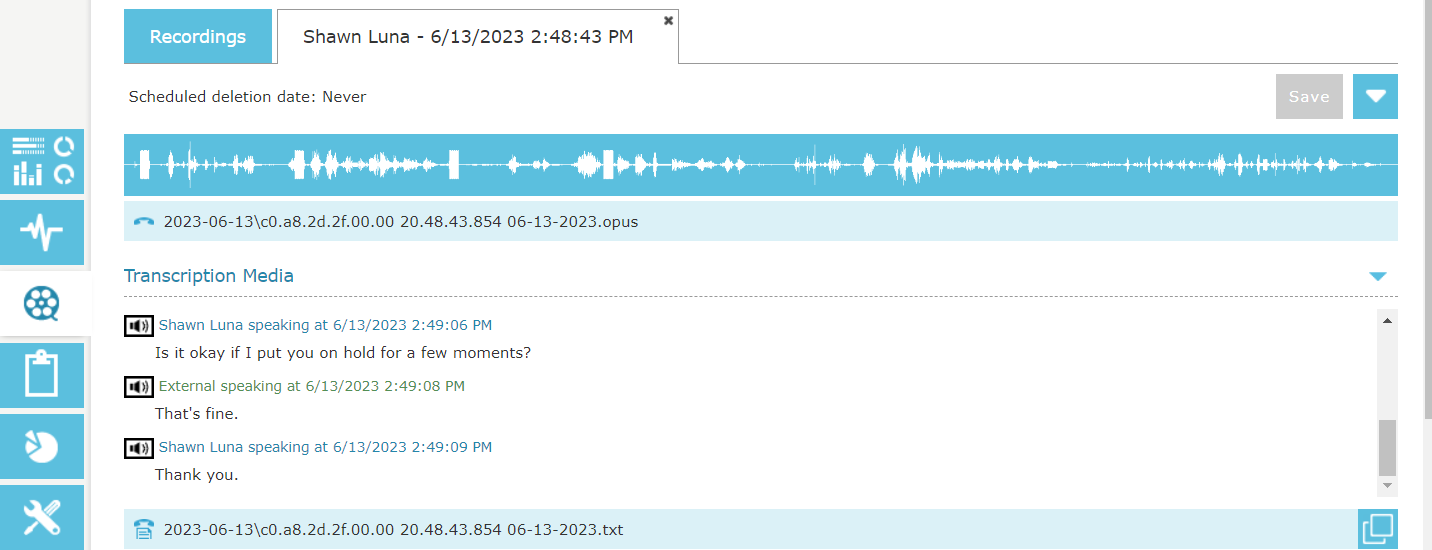
Figure 12: Recording Edit with Transcription Media
Speaker and Language Identification and Segmentation
The transcription engine provides QMS the speaker identification and the segmentation of the recording. As the conversation moves back and forth, the transcription engine will segment or split the conversation into phrases that can be transcribed and read. This segmentation does not always happen perfectly and it’s possible for the transcription engine to segment the same speaker into smaller phrase chunks instead of having the entire speaker’s phrase.
In addition, when multiple languages are available, the transcription engine is also doing a language identification prior to any analysis to determine what language is being spoken in the recording so that it can then analyze the recording with the correct language model.
Different languages may be segmented differently in the end transcription. We’ve found that Asian languages may segment the transcription into smaller chunks and even group everything spoken by one caller through the whole recording into one segment. These are issues with the transcription engine language model and there may be parameters to adjust within the transcription engine framework that can help with those situations. This is out of the reach of the QMS system.
Transcription Media Window
The Transcription Media window includes the exact location of transcription file. Transcription engines cannot provide 100% accuracy with the transcription data and accuracy will decrease with the faster operating mode settings, but in general, the transcription is often quite good. The transcription engine does sometimes provide an error description and this will be displayed within the Transcription Media window.
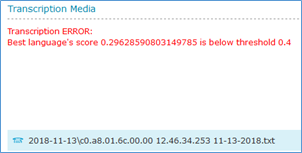
Figure 13: Transcription ERROR
In cases where there is an error or if the call has not been transcribed, QMS gives the option to initiate a transcription using the Transcribe Now feature. This is found within the Recording Edit tab and hovering over the call audio. If the administrator is licensed and the call is eligible for transcription, the Transcribe Now button will be available.

Figure 14: Transcribe Now button
After clicking Transcribe Now, QMS will initiate a transcription request. This process includes converting the .opus or .mp3 call audio back into wav format and then sending the request off to the transcription engine. Since the transcription process may take a significant amount of time, up to the length of the call, once the Transcribe Now request is initiated, you will see the following dialog, but the Transcription Media window will not be available until after the transcription is complete.
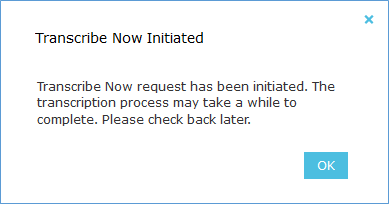
Figure 15: Transcribe Now Initiated Dialog
Also included on the Transcription Media window on the lower right is an icon with two windows that when click will pull the entire transcription out into a separate window. This allows for the administrator to see more of the transcription text at once.
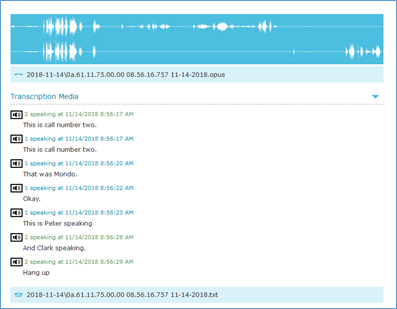
Figure 16: Transcription Window