Solution Overview
The QMS Recording solution for a Microsoft Skype for Business environment consists of three possible call recording modes, as well as the option of recording Skype for Business chat sessions. Exact configuration for QMS within a Skype for Business environment can vary greatly, because of the flexibility of Skype for Business setups. General, basic configurations for each recording mode are described in this document. More complex Skype for Business environments will likely need to expand on the basic configurations (for example, more Front End servers require more Telrex Net Service installations).
Along with the usual QMS services installed on the QMS Server, any Skype for Business recording solution will also include at least one installation each of two other QMS components: the RTP Data Collector (RTPDC) for Endpoint mode recording or the QMS Packet Forwarding Service for Mirroring/AtEdge modes, and the Telrex Net Service. When installed on a PC running the Skype for Business client, the RTPDC will forward any RTP audio packets from the PC to the QMS Server. When installed on a Mediation or Edge server, the QMS Packet Forwarding Service will also forward RTP audio packets from IP addresses of interest to the QMS Server.
|
The QMS Packet Forwarding Service includes two enhancements that the RTPDC does not, which make it the preferred solution for server-side packet capture:
|
The Telrex Net Service connects to a Skype for Business Front End Server as a trusted application, in order to communicate call control events to the QMS Server.
|
Prior to Skype for Business Server, Microsoft’s PBX solution was called Skype for Business (versions 2010 and 2013), and Office Communications Server (OCS) before that. Steps for integrating all three variants with QMS are largely the same; when referencing most components, "Skype for Business" and "Skype for Business" can be used interchangeably. Any differences will be noted when necessary. |
Mediation Server Recording (Mirroring Mode)
Mediation Server Recording is the most common QMS deployment option. It is not as complex to configure as an Edge Server Recording scenario. Mediation Server Recording also does not suffer from early media issues like those that Edge Server Recording can, because the audio paths to the Mediation Server must be established for audio to start flowing. The drawback of Mediation Server Recording is that no internal calls can be recorded. Mediation Server Recording is therefore often used in call centers and other situations where the recording of internal calls is not needed. Mediation Server Recording can record conference calls and queue calls.
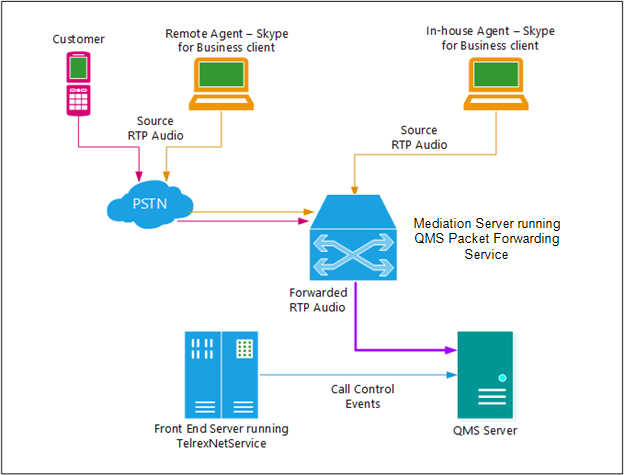
Figure 1 Mediation Server Recording concept diagram.
The QMS components that need to be installed in the Skype for Business topology in order to forward audio and call control to the QMS Server are the Telrex Net Service, installed on the Front End Server, and the QMS Packet Forwarding Service, installed on the Mediation Server. Prior to installing and configuring the QMS components, Media Bypass must be disabled in the Skype for Business Server Control Panel. If Media Bypass is enabled, call routing will flow directly between endpoints and not go through the Mediation Server. This means no audio would flow through the Mediation Server, and there would be nothing for the QMS Packet Forwarding Service to send to the QMS Server.
To disable Media Bypass, do the following:
-
Open the Skype for Business Server Control Panel.
-
In the left navigation bar, click Network Configuration.
-
Double-click the Global configuration in the table.
-
On the Edit Global Setting page, uncheck the Enable media bypass check box.
-
Click Commit.
Once Media Bypass has been disabled, see Section 5 below for steps to install the Telrex Net Service on the Front End Server. Next, refer to the QMS Packet Forwarding Service Installation Guide for the steps needed to install the Service on the Mediation Server.
Edge Server Recording (AtEdge Mode)
Edge Server Recording is conceptually similar to Mediation Server Recording, in that audio is forwarded from the Edge Server via the QMS Packet Forwarding Service to the QMS Server for recording. From a high-level point of view, the main difference between the two recording methods is Edge Server Recording allows for the recording of internal calls, along with external, conference, and queue calls, while Mediation Server Recording does not allow recording of internal calls.
While Edge Server Recording allows all calls to be recorded, properly setting up and configuring an Edge environment is usually more complex than a Mediation Server Recording environment. More details about the environment are needed to get the correct IP addresses for the users. Proper firewall rules must be defined to make sure audio can flow correctly to each Edge Server. The Telrex Net Service cannot force call audio through the Edge Server; it can only promote the Edge audio path as the preferred path for a call’s audio. It is possible that another audio path is chosen for the call, and the call will not be recorded because audio is not flowing through the Edge Server. For example, in an environment with two Edge Servers, if firewall rules between the Edge Servers are not defined correctly, an audio path cannot be established for a call between the two Edge Servers. An audio path is then established that doesn’t include the Edge Servers, meaning no audio flows to the Edge Servers, and the call can’t be recorded.
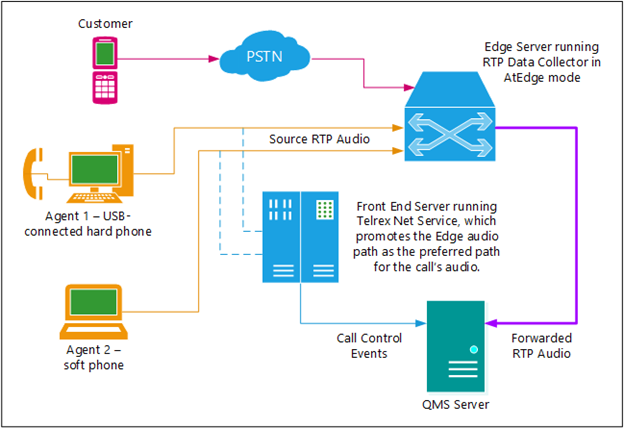
Figure 2 Edge Server Recording concept diagram.
A drawback of Edge Server Recording is the Skype for Business concept of "early media". For QMS to record a call in Edge Server Recording, a media path for the call must be established through the Edge Server. Once audio reaches the Edge Server, the QMS Packet Forwarding Service will forward the audio to the QMS Server. Building the media path through the Edge Server might take a few seconds, however. The audio endpoints on a call are able to start sending audio directly to each other well before they establish an audio path between one another. Because the first few seconds of audio, the "early media", might be sent directly between endpoints, the Edge Server does not receive that audio and therefore cannot forward it to the QMS Server to be recorded. As a result, these call recordings will be missing the first few seconds of audio.
See Section 5 below for steps to install the Telrex Net Service on the Front End Server. Next, refer to the QMS Packet Forwarding Service Installation Guide for the steps needed to install the Service on the Mediation Server.
Endpoint Recording (Endpoint Mode)
The third recording mode that QMS employs in a Skype for Business environment is called Endpoint Recording. As with the first two recording modes, Endpoint Recording requires installing the Telrex Net Service on the Front End Server to send call control events to the QMS Server. The main conceptual difference between Endpoint Recording and the other two modes is the use of the RTP Data Collector on every recorded agent’s PC, rather than using the QMS Packet Forwarding Service on a centrally located server. Any audio flowing into or out of the agent’s PC is forwarded by the RTPDC directly to the QMS Server. Endpoint recording will work with Skype for Business clients (softphones), as well as with USB-connected hard phones that are compatible with Skype for Business.
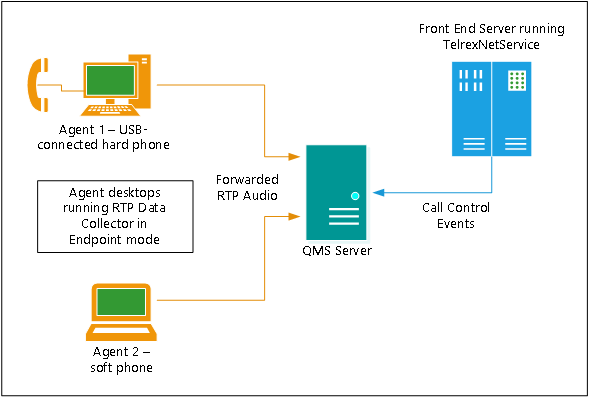
Figure 3 Endpoint Recording concept diagram.
See Sections 4 and 5 below for steps to install the RTPDC on each recorded agent’s PC, and to install the Telrex Net Service on the Front End Server, respectively.
Chat Session Recordings
Along with recording phone calls, QMS has the capability of recording Skype for Business chat sessions. The recording will start with the first message sent in a chat session, and the recording will end once the chat session windows are closed. Chat recording capability requires a separate Text Recording license for each user that needs this feature.