Search Recordings
To search recordings click the  navigation icon. The Recordings tab displays containing the search criteria bar and the search results table. A Full Text search option is also available if this feature has been enabled. To perform a standard search complete the following steps:
-
Click the Search button. The recordings satisfying the search criteria are listed.
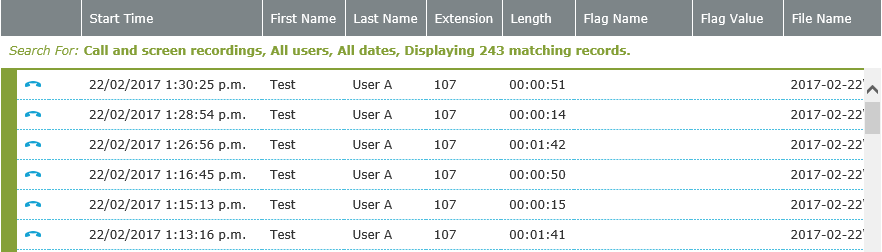
The Search results table displays containing the following data columns:
| Column | Description | ||
|---|---|---|---|
Medium |
An icon indicating the recorded media type:
|
||
Chain |
The |
||
Evaluated |
The |
||
Sentiment |
An icon indicating the sentiment of the recording (if EnghouseAI sentiment analysis has been enabled on the recording profile):
|
||
Sentiment Trend |
An icon indicating the sentiment trend of the recording (if EnghouseAI sentiment analysis has been enabled on the recording profile):
|
||
Start Time |
The date and time at which the call started. The date displayed depends on your preferences for time zone display. |
||
First Name |
The user’s first name. |
||
Last Name |
The user’s last name. |
||
Extension |
The user’s extension number. |
||
Inbound ID * |
The inbound ID number (e.g. caller ID) |
||
Inbound Name * |
The inbound name (e.g. caller name) |
||
DNIS * |
The DNIS. This is typically the number dialed by the caller, but sometimes, depending on the PBX, it is a route-point identifier instead. For example, an external phone number might reach an internal route-point extension 1111, which the contact center application knows routes to a group of agents. In that case, 1111 might be displayed. |
||
Outbound ID * |
The outbound ID number (e.g. the number dialed by the user). |
||
Outbound Name * |
The outbound name. |
||
Length |
The duration of the call. |
||
End Time |
The date and time at which the call ended. The date displayed depends on your preferences for time zone display. |
||
Flag Name |
The name of the flag applied to the recording search. |
||
Flag Value |
The value of the flag applied to the recording search. |
||
File Location |
The path to the daily call record subfolders. |
||
File Name |
The name of the subfolder and file containing the recording. |
||
External Ref * |
An external reference for the recording (e.g. a PBX-specific call identifier for call recordings or a computer name for screen recordings) |
||
File Hash |
A unique has used to verify the recording has not been tampered with. |
||
Transfer From |
Indicates the recording has been transferred from the original recording server. |
||
Recorded By |
"System" if the call is recorded automatically (according to a profile); otherwise, the user name for user-initiated recordings. |
||
Department |
The department of the user. |
||
Location |
The location of the user. |
||
Time zone |
The time zone offset to UTC of the recording server where the recording was made. |
||
Recording Server Name |
The name of the recording server where the recording originated. |
||
Recording Profile |
The name of the recording profile that triggered the recording if the recording was triggered automatically (or Empty if recorded on-demand) |
||
System Flags |
Any system flag can also be selected and viewed as a column.
|


-
What is actually displayed depends on the data output by your PBX.
|
You can hide or display columns in the search results table by clicking the |

Click on a search result to select it. You can click and drag to select multiple results. Left click on a selected search result to bring up the context menu:

The search results context menu contains the following commands:
-
Preview to preview an audio call or recording summary (if available).
-
Details to play the recording or view and edit any flags or notes applied to the screen recording.
-
Export Media to copy the media to a file on your computer.
-
Start Evaluation to create a new evaluation using the media.
-
Reject to mark the screen recording as not suitable for evaluations.
-
Delete to permanently delete the recording.
-
Transcribe to start an on-demand transcription job (call recordings only)
-
Analyze to start an on-demand content analysis job (text based recordings only
-
Send to EnghouseAI to start an on-demand EnghouseAI request (call recordings with transcription, Webchat, UCMessage or Email recordings created by a recording profile with EnghouseAI enabled only.)
|
The Start Evaluation and Reject commands are only available to users licensed to perform Agent Evaluations. |
See Also: