Copying and Emailing Evaluation Links
Users with the Create Evaluation permission in their Security Profile can view evaluations.
To copy or email an evaluation link click the  navigation icon. The Evaluations tab displays containing the search criteria bar and the search results table. To copy or email an evaluation link complete the following steps:
-
Click the Search button. The evaluations satisfying the search criteria are listed.
-
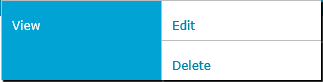
Left click the evaluation you wish to copy or email and click the View button in the context menu.
The evaluation details tab is displayed, the tab name contains the user’s name and the name of the scorecard.
Copying an Evaluation Link
To copy an evaluation link, complete the following steps:
-
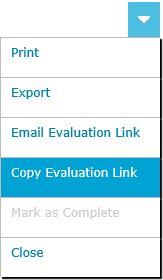
Open the drop down menu located at the top right of the evaluation details tab and click the Copy Evaluation Link menu item.
-
The evaluation link has been copied to the clipboard.
Emailing an Evaluation Link
To email an evaluation link, complete the following steps:
-
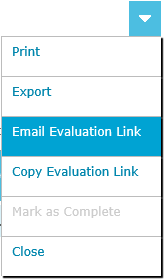
Open the drop down menu located at the top right of the evaluation details tab and click the Email Evaluation Link menu item.
-
Your email message editor will open using your default email program. The email message will contain the evaluation link and the evaluated user’s name and the evaluation last modified date.
Opening an Evaluation Link
To open an evaluation link, complete the following steps:
-
Click the evaluation link. The QMS Client opens in a new browser window.
-
Enter your QMS credentials and click Login. The evaluation details tab automatically opens.
|
Users must have the Create Evaluation permission in their Security Profile to open an evaluation link. |
See Also: