KeyCloak Configuration
The following steps are required to prepare a KeyCloak Identity Server for integration with QMS Third-Party Authentication.
-
Create a KeyCloak Realm for QMS.
All users and clients should be created within this realm. If the users or clients are common with other Enghouse products then they also need to be created within the same realm.
|
It is not recommended to use the KeyCloak Master realm for anything other than KeyCloak administration. |
-
Create a KeyCloak Client for QMS
Ensure the Client Type is OpenID Connect and give an appropriate ClientID to represent the QMS client.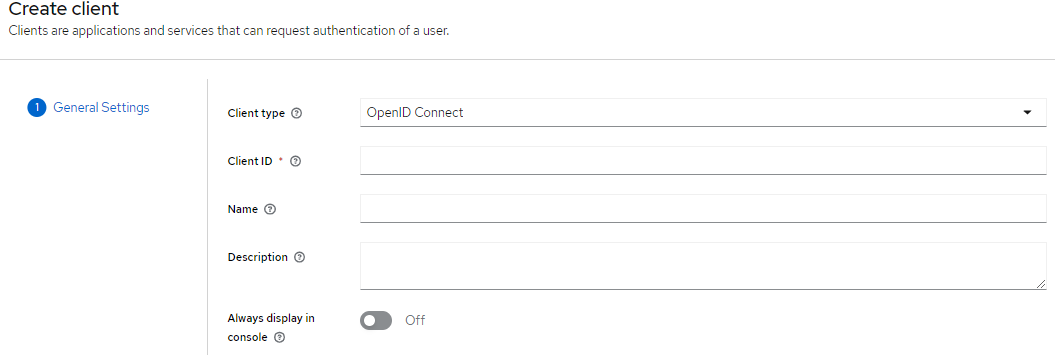
after creation make the following changes (if applicable):



In a production system you may wish to change the Valid Redirect URI and Web Origins to a fully qualified domain name (internet accessible address) of the QMS server if you have one, rather than use the wildcard.

-
Obtain the Authentication Endpoint Urls
In order to configure QMS you will need to know two Urls, the Auth Endpoint and the Token Endpoint. They normally follow this same format:-
Auth Endpoint
http://[keycloak server]/realms/[qms realm]/protocol/openid-connect/auth -
Token Endpoint
http://[keycloak server]/realms/[qms realm]/protocol/openid-connect/token -
Alternatively you can obtain this information from the Realm Settings page by clicking the OpenID Endpoint Configuration link which will present some JSON configuration data within which you will find the auth and token endpoints.

-
-
Obtain the Client Secret
You will need to copy down the auto-generated client secret to configure QMS with. This is found in the Credentials tab of the Client Details page.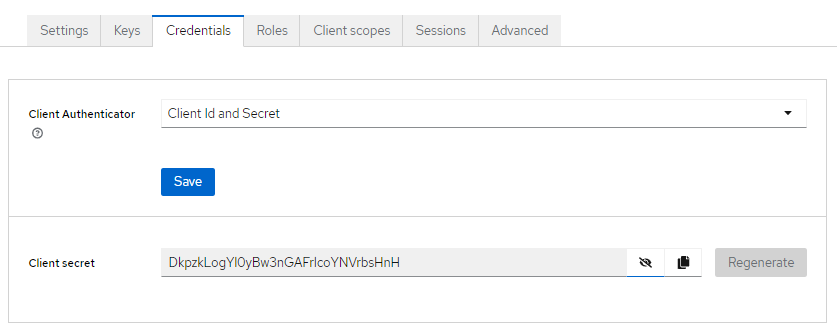
-
Enable Refresh Tokens
Ensure that Use Refresh Tokens are enabled for the Client (they are normally enabled by default). This allows the OAuth access token to remain alive for the duration of the user’s QMS browser session. This is found in the Advanced tab of the Client Details page.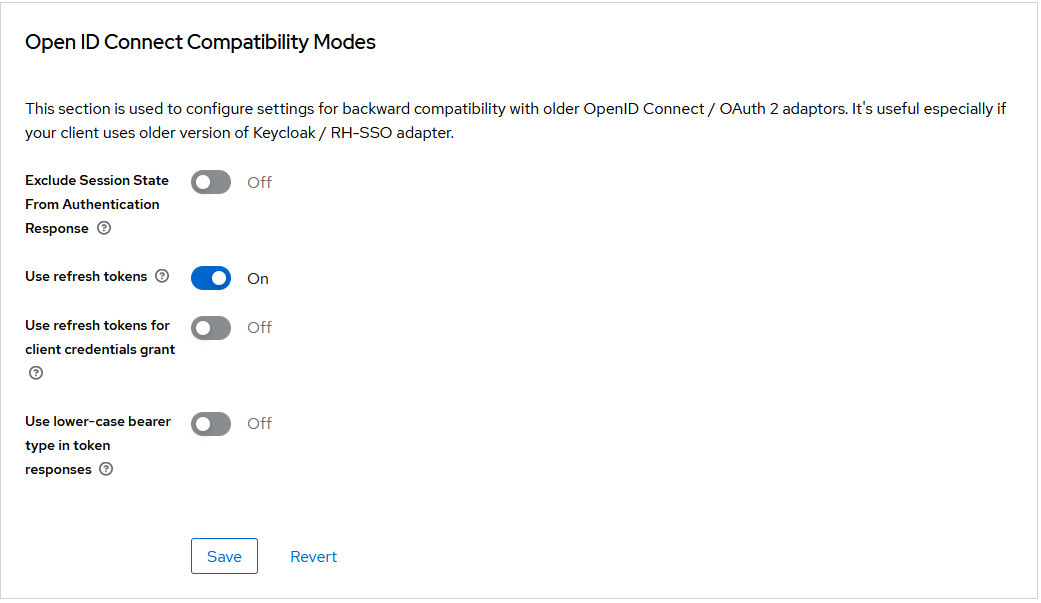
-
Configure QMS
Enter the Auth Endpoint, Token Endpoint, Client ID and Client Secret into the QMS Third-Party Authentication settings which is found under the General Settings page (or the Tenant Settings page if multi-tenancy is used)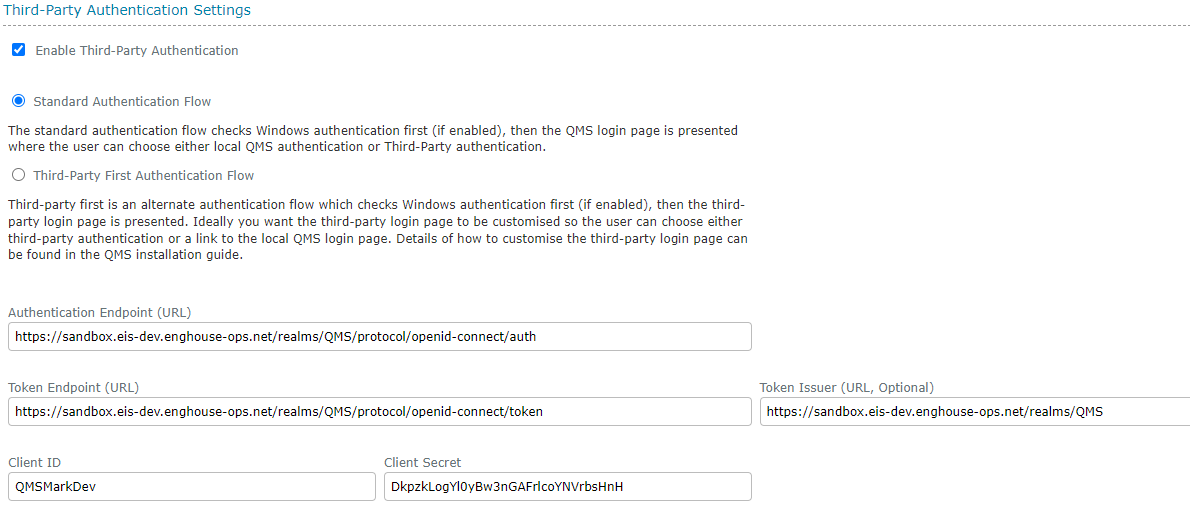
The QMS dataservice must be able to reach the Token Endpoint entered here. -
For more information on configuring Third-Party Authentication in QMS refer to the User Guide’s Third-Party Authentication Settings page.