Step 12 – Configure High Availability in QMS Administration
In the Admin section of the QMS Administration, select the Services page. You should see a listing of all your Primary and Secondary QMS Services. Typically, this would include two CallRecording and two DataService instances.
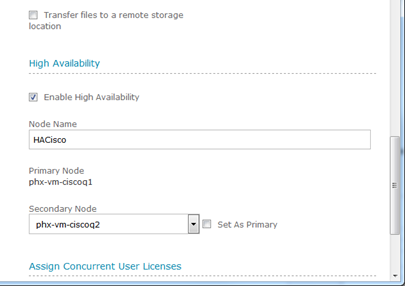
Select the Primary Call Recording Service and double click to edit the service. Toward the bottom, find the High Availability section. You will need to check the "Enable High Availability". Enter a Node Name. The Node Name will be how the Primary/Secondary Services are referenced moving forward. You should see the selected service name as the Primary Node. Select the Secondary Service from the Secondary Node drop-down menu. Once ready, click the save button at the top to save these changes. Once saved, these two Call Recording Services are now linked as a Primary/Secondary Node. You will not be able to make any changes to this from the Secondary Service. Any changes must be made from the Primary Node.
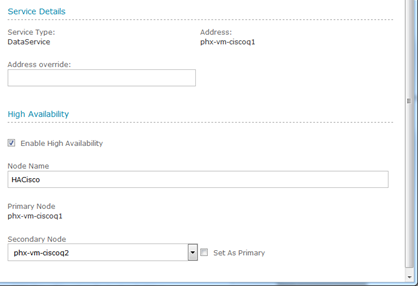
Next, select the Primary Data Service and double click to edit the service. Again, you will see a very similar set of fields in the High Availability Section. Select "Enable High Availability", enter a Node Name and Select the Secondary Service from the drop down. Once saved, the Data Services will be linked as a High Availability Node.
Restart QMS Services on both Primary and Secondary QMS Servers.