All Servers
To install .NET Framework on Windows Server 2019 or above, complete the following steps:
-
Navigate to Server Manager > Local Server and scroll down to the Roles and Features section.
-
Click the TASKS drop-down and select the Add Roles and Features option. The Add Roles and Features Wizard window displays.
-
Click Features on the left side of the Add Roles and Features Wizard window. The Select features page displays. Ensure the following features are selected (as shown by the screenshot below):
-
.NET Framework 3.5 Features
-
.NET Framework 3.5
-
HTTP Activation
-
Non-HTTP Activation
-
-
NET Framework 4.7 Features
-
.NET Framework 4.7
-
ASP.Net 4.7
-
WCF Services
-
HTTP Activation
-
Named Pipe Activation
-
TCP Activation
-
TCP Port Sharing
-
-
-
IIS Hostable Web Core
-
|
When you select the WCF Activation checkbox, a new window may appear requesting that the .NET Extensibility role service be installed. Click Add Required Role Services. The WCF Activation checkbox and the checkboxes below it are selected. |
To install .NET Framework on Windows Server 2016, complete the following steps:
-
Navigate to Server Manager > Local Server and scroll down to the Roles and Features section.
-
Click the TASKS drop-down and select the Add Roles and Features option. The Add Roles and Features Wizard window displays.
-
Click Features on the left side of the Add Roles and Features Wizard window. The Select features page displays. Ensure the following features are selected (as shown by the screenshot below):
-
.NET Framework 3.5 Features
-
.NET Framework 3.5
-
HTTP Activation
-
Non-HTTP Activation
-
-
.NET Framework 4.6 Features
-
.NET Framework 4.6
-
ASP.Net 4.6
-
WCF Services
-
HTTP Activation
-
Named Pipe Activation
-
TCP Activation
-
TCP Port Sharing
-
-
-
IIS Hostable Web Core
-
|
When you select the WCF Activation checkbox, a new window may appear requesting that the .NET Extensibility role service be installed. Click Add Required Role Services. The WCF Activation checkbox and the checkboxes below it are selected. |
Installing Desktop Experience
For Windows Server deployments, the Desktop Experience feature will need to be added. The prerequisite checker will not allow the install to proceed if this is not turned on.
|
After the Desktop Experience is installed, a reboot of the server is required. |
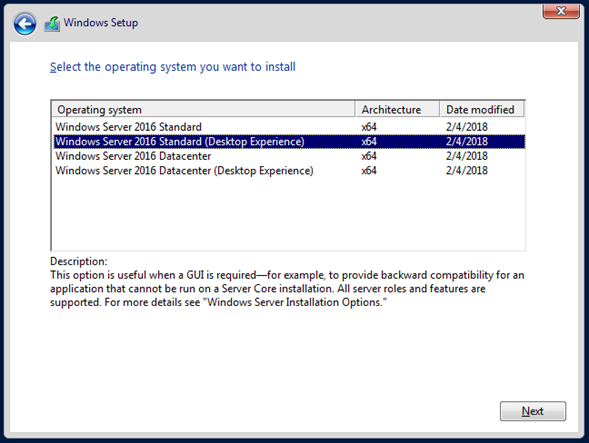
For Windows Server 2016 or above, complete the following steps:
Starting with Windows Server 2016, the Desktop Experience option is no longer available after Windows Server has been installed. Instead, during the initial installation of Windows Server 2016 and 2019, a Windows Edition with Desktop Experience must be selected from the Windows Setup Wizard as seen below.