Adding Desktop Agent Deployment Profiles
Users with the Change System Settings permission in their Security Profile can add Desktop Agent deployment profiles.
To add a deployment profile click the  navigation icon and then click the Desktop Agents link from the administration sub-menu. The Desktop Agents tab displays containing the list of deployment profiles. To add a new deployment profile, complete the following steps:
-
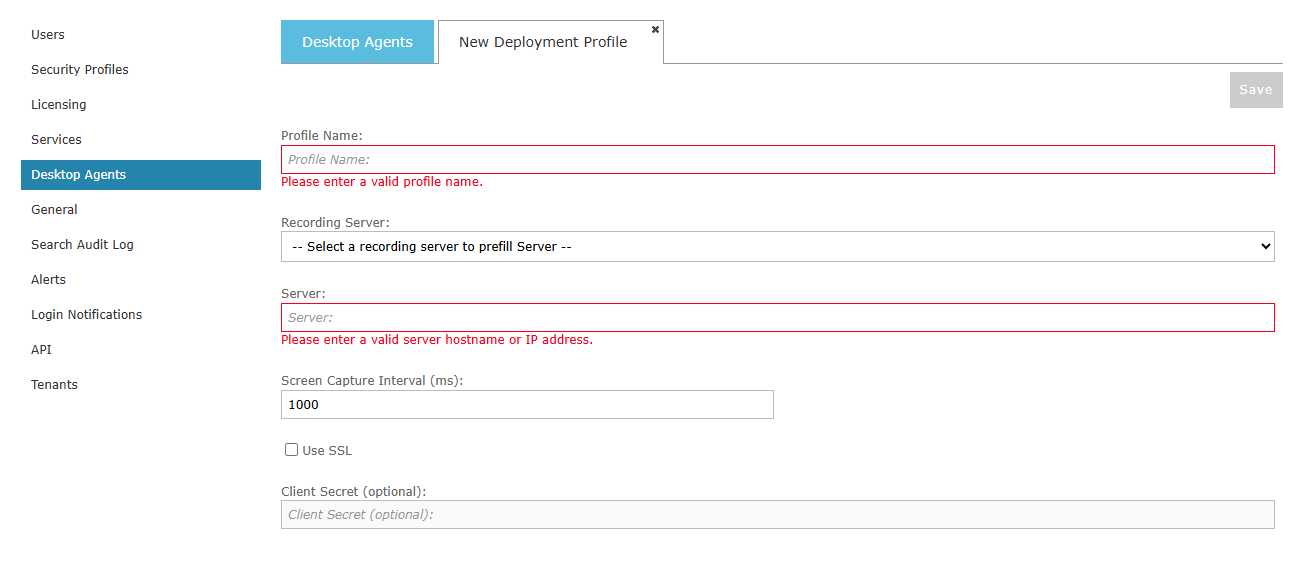
Click the Add Profile button. The New Deployment Profile tab displays.
-
Enter a Profile Name to help you identify the profile in the list (up to 100 characters).
-
Optionally, select a Recording Server from the drop-down list to prefill the Server field.
-
Enter the Server, the hostname or IP address the Desktop Agent should connect to, if it was not prefilled.
-
Enter the Screen Capture Interval (ms), how often in milliseconds the Desktop Agent captures the agent’s screen. The default is 1000.
-
Select Use SSL if the Desktop Agent should connect to the server using SSL. If SSL is used, the server address must match the subject of the certificate configured on the Recording Server, which is typically its fully qualified domain name.
-
Optionally, enter a Client Secret, if a secret has been configured on the Recording Server.
-
Click the Save button.
The profile is added to the list and its Installer URL and Configuration URL are generated. See Desktop Agents for how to use them to install the Desktop Agent.
See Also: