Viewing Recording Sentiment
Users with the Playback Recording permission in their Security Profile can view recordings and their associated sentiment data.
To view call recordings click the  navigation icon. The Recordings tab displays containing the search criteria bar and the search results table. Change the search criteria to find the recordings you are interested in. The search results will show the overall sentiment and sentiment trends of the recordings as icons:
Sentiment |
An icon indicating the sentiment of the recording (if EnghouseAI sentiment analysis has been enabled on the recording profile):
|
Sentiment Trend |
An icon indicating the sentiment trend of the recording (if EnghouseAI sentiment analysis has been enabled on the recording profile):
|


|
If the sentiment columns are not shown you may have the columns hidden. You can hide or display columns in the search results table by clicking the |

To drill down further into the sentiment data for a specific recording, click the Details button on the recording context menu.

The recording details tab is displayed, the tab name contains the user’s name and the date and time of the recording. The tab contains the name of the recording file and the contents of the recording dependent on the media type.
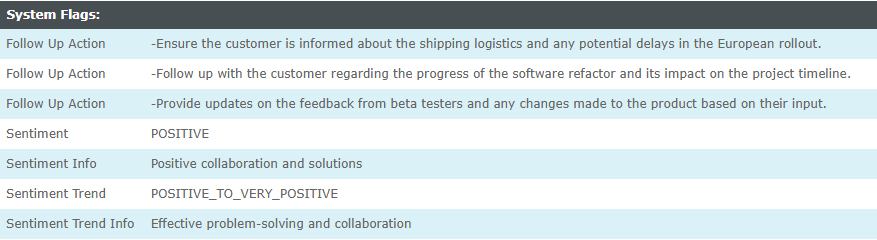
The raw sentiment data is stored as recording flags for each recording. You can view this raw data in the System Flags section of the recording detail page:
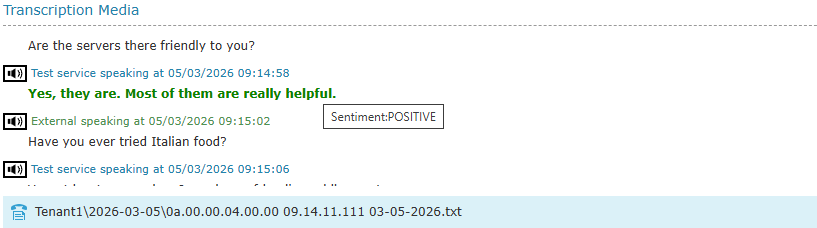
The recording transcript (if audio call) or text content will also highlight any sentiment key phrases that were used to determine the overall sentiment value. Positive key phrases will be highlighted in green, negative key phrases will be highlighted in red and neutral key phrases will be highlighted in black.
See Also: