Adding Security Profiles
Users with the Change System Settings permission in their Security Profile can add a security profile.
To add a security profile click the  navigation icon and then click the Security Profiles link from the administration sub-menu. The Security Profiles tab displays containing the list of security profiles. To add a security profile, complete the following steps:
-
Click the
 button on the action bar located at the top right of the security profile table.
 -
A new tab will open with New Security Profile as the tab title.
-
Enter a valid Profile Name.
-
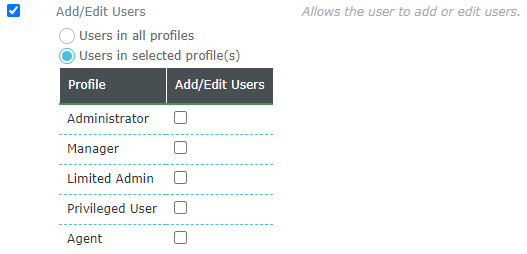
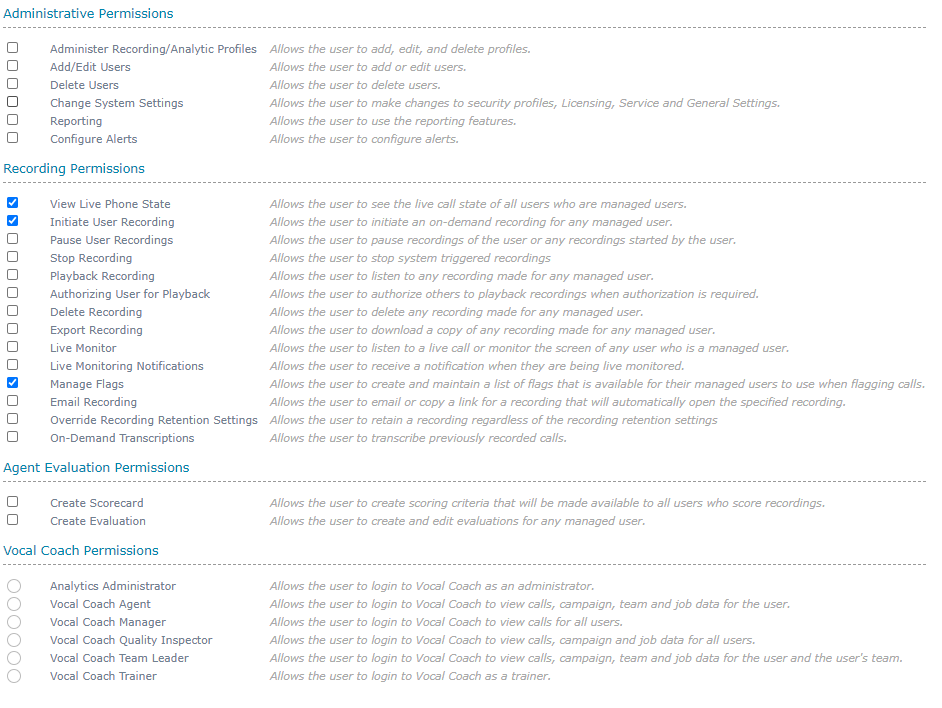
In each of the Administrative Permissions, Call Recording Permissions, Screen Recording Permissions, Agent Evaluation Permissions and Vocal Coach Permissions sections check or uncheck the permissions as required.
-
Click the Save button on the action bar located at the top right of the security profiles tab. The tab will refresh and the security profile name will now display as the tab title.