SIP and SCCP Port Mirroring
Port mirroring is the action of copying all inbound and outbound network traffic from one port on a network switch to another port. Most modern network switches allow for some level of port mirroring, including Virtual LAN (VLAN) configurations that allow the network administrator to segment the local network as needed. QMS can utilize port mirroring to record calls to and from Cisco IP phones. Cisco uses either the SIP protocol or the SCCP (Skinny) protocol to send call control information. QMS has the capability of handling either protocol, or both protocols at the same time.
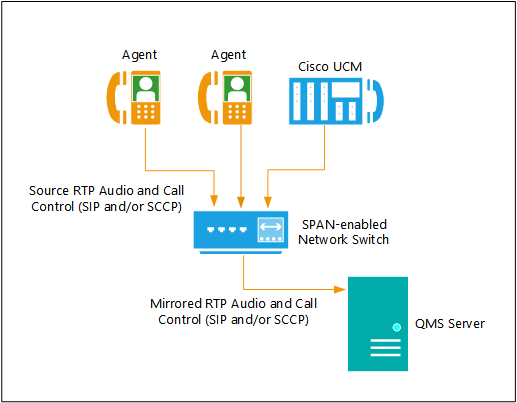
Figure 1: Port mirroring configuration
Network Configuration
While different brands and models of network switches have unique methods of configuration, setting up network mirroring usually involves accessing the network port settings through the network switch’s administration portal. One port is selected to be the destination port for the mirrored packets; this port might be selected by default, or the port might be selectable by the administrator. The destination port is the port to which the QMS server’s capture network interface card (NIC) is connected. After setting up the destination port, the source ports from which network traffic will be mirrored must have mirroring enabled. The source ports will be ports to which the Cisco IP phones are connected. Refer to the network switch’s administration manual for more specific details on configuring port mirroring for the switch.
QMS Configuration
Services configuration:
-
Log into the QMS Client as a user with permissions to create new or update existing Services information.
-
Click on Services under Administration in the navigation area.
-
Select the Call Recording Service that will have users assigned, and click Edit.
-
A new tab will appear, displaying the settings for the service. The PBX Type should default to SIP – if the Cisco environment is using SIP devices, leave the PBX Type as SIP (or select SIP from the drop-down if it isn’t already selected). If the Cisco environment is using SCCP (Skinny), select the option titled "Cisco SCCP" from the drop-down. If the Cisco environment is using a mix of SIP and SCCP (Skinny), select the option titled "Cisco SCCP+SIP" from the drop-down.
-
Enter in the PBX IP Address.
-
Enter the Address override and Secondary Endpoint Subnet fields if needed.
-
Click Save.
User configuration:
-
Log into the QMS Client as a user with permissions to create new or update existing User information
-
Click on Users under Administration in the navigation area.
-
Click Add to create a new user, or if users already exist in the system, select a user to update from the user list and click Edit.
-
Fill out the Personal and Account Information sections.
-
Check the Call Recording checkbox in the Licenses section.
-
In the Call Recording Settings section, pick the name of the server used to record the user.
-
Fill in the Extension and Endpoint IP Address fields accordingly.
-
If the service’s PBX Type is set to "SIP", fill in the Additional Extensions field, if necessary.
-
If the service’s PBX Type is set to "Cisco", indicating an SCCP environment, fill in the Private Extensions field if necessary.
-
Click Save, and repeat for each additional QMS user.