Create Azure VM
You will need to create a VM in Azure to host QMS, which contain the Teams Native Recording bot. The QMS Teams bot is part of the QMS Call Recording Service and is used when the PBX Type for the Call Recording Service is set to "Microsoft Teams Native Recording".
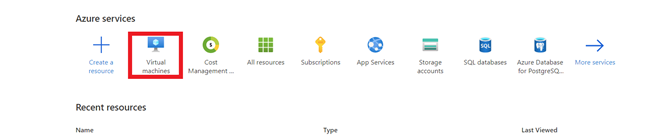
First, browse to the Azure portal at https://portal.azure.com and login as a user that has permissions to create virtual machines. On the home screen click on Virtual Machines:
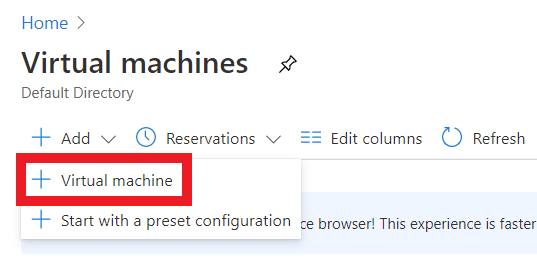
Next, click on "Add → Virtual Machine":
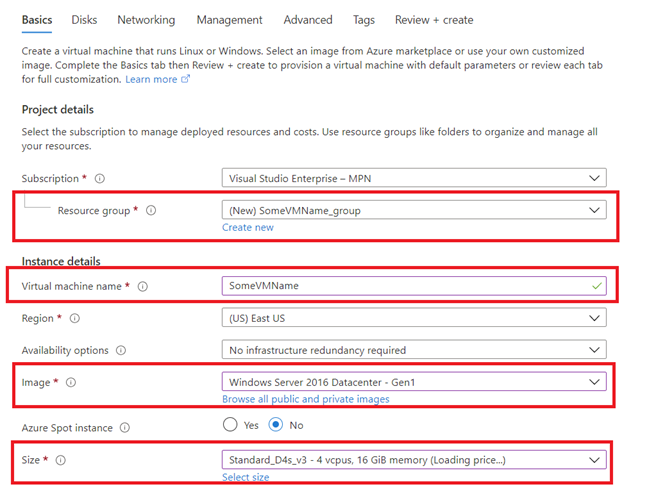
After clicking on Virtual Machine, the "Create a virtual machine" Basics page will open. On this page you will need to configure a few details:
-
Select an existing Resource Group or create a new one.
-
Give the VM a Name.
-
Select a Windows Server VM Image.
-
Select a VM Size based on the expected workload. More information on server sizes can be found in the Quality Management Suite System Design Guide.
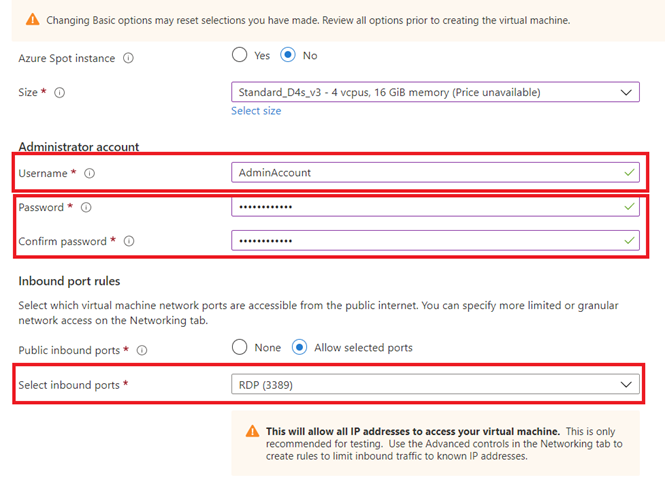
Next, create an administrator account and give it a password. Also, allow the inbound RDP port so that remote RDP sessions can be created:
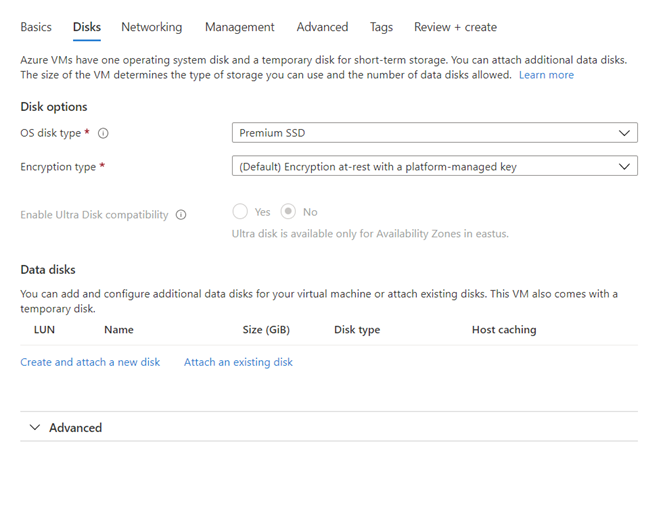
Next, click "Next: Disks >", which will take you to the "Create a virtual machine" Disks page. On this page you can optionally add additional disks to the VM if you are going to store recordings long term on the Azure VM:
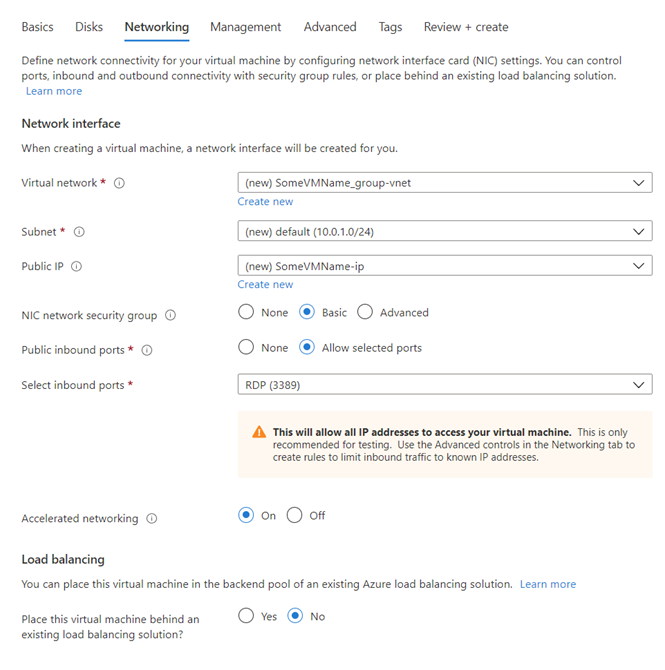
Once you have added any additional disks that may be required, click "Next: Networking >", which will take you to the "Create a virtual machine" Networking page. On this page you can configure any network settings you wish to set, or leave the defaults and allow Azure to configure them for you:
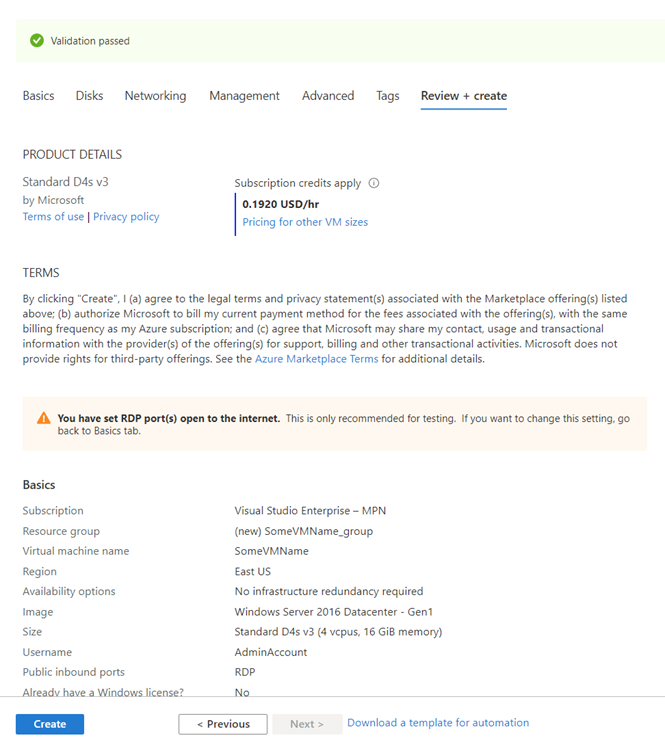
Once you have finished with the Networking page, click "Review + Create", which will take you to the "Create a virtual machine" Review + Create page where you can review the settings for the VM. Once you are ready to move forward, click on Create.