Recording Calls
The QMS call recording solution has two methods to start a recording of a call: automatic recording (also referred to as System-Triggered recording), and on-demand recording. Automatic recording happens as the name suggests; the system starts a recording automatically based on the Call Recording Profile to which the user belongs.
|
Automatic recordings cannot be stopped by a QMS user. If the user is assigned to a Security Profile that has the Pause User Recordings permission, the user can pause an automatic recording. |
On-demand recording occurs when a user starts a recording of his/her own call, or the call of another user who is managed by the first user. On-demand recordings are only available for calls that are not recorded automatically, because either the user is not assigned to a Call Recording Profile, or the Profile is not recording the calls automatically based on the Profile’s settings.
While the Desktop Utility can be used to monitor the status and call information of an automatic recording, the DU is primarily used to handle on-demand recordings.
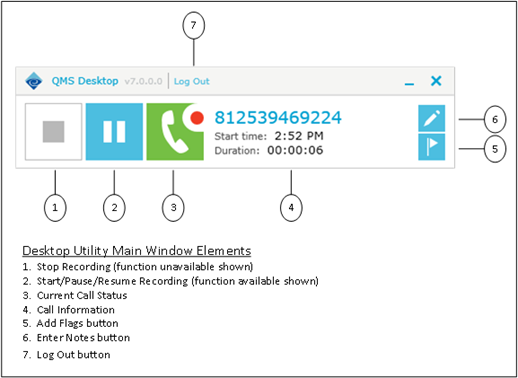
To record a call with the DU, once a call is connected, the user clicks the Start Recording button (#2 in Figure 1) to begin the recording. Once a recording starts, other buttons become available—the Stop Recording button, Add Flags button, and Enter Notes button, specifically. Corresponding items appear on the context menu of the notification tray icon as well.
|
A button is unavailable, and therefore its function is disabled, while its background is white. Once a button’s background changes to blue, its function is enabled. |
The Stop Recording button is a single-function button, becoming available once the user who is logged into the DU starts an on-demand recording. The Stop Recording button remains unavailable when an automatic recording occurs, or if another user starts an on-demand recording.
The Start/Pause/Resume Recording button is a multi-function button, depending on the current state of the call. Once a call is connected and not recorded automatically, the Start Recording button is shown and is available. Once an on-demand recording starts, the Pause Recording button is shown. Finally, if a recording is paused, the Resume Recording button is shown.
The Current Call Status icon will change based on the current call status, which is reflected in the notification tray icon status as well. When a call is connected, the Current Call Status switches to a green background. Once a recording starts, the Current Call Status adds a red circle in the upper right corner. If the recording is paused, the red circle becomes an orange quotation mark.