Installation
Installing Meilisearch
Meilisearch can run on the same machine as the QMS Data Service, or on a separate, remote machine. Which of these applies determines how it gets installed:
-
To install Meilisearch on the QMS Data Service machine, use the checkbox provided in the QMS Installer and QMS Updater - no separate manual installation is needed.
-
To install Meilisearch on a separate, remote machine, it must be installed there manually.
Installing on the Data Service machine
-
During QMS installation or update, select the checkbox to install the QMS Meilisearch Service. This checkbox is unchecked by default.
-
The Installer or Updater installs Meilisearch on the Data Service machine automatically, alongside QMS, and starts it as a Windows Service named "QMS Meilisearch Service".
-
Once installation completes, continue to Retrieving the master key below.
Installing on a separate remote machine
If Meilisearch will run on a machine other than the QMS Data Service machine, install it there manually instead:
-
Locate
MeilisearchSetup.msiin the QMS install/update zip and copy it to the remote machine where Meilisearch will run. -
Run
MeilisearchSetup.msion that machine and complete the installation wizard.The installer places the following components in the Meilisearch install folder:
-
meilisearch-windows-amd64.exe- the Meilisearch server binary. -
meiliservice.exe- a Windows service wrapper for the Meilisearch server, so it can run as the "QMS Meilisearch Service" Windows Service rather than a standalone console application. -
A configuration generator tool, which runs automatically as part of installation and generates
meiliservice.xml. This file configures the "QMS Meilisearch Service" Windows Service and contains a freshly generatedMASTER_KEY, unique to this installation.
-
-
After installation completes, confirm the "QMS Meilisearch Service" is running from the Windows Services panel, and administer it to start automatically and restart on failure if not already configured to do so.
-
Open the firewall on the remote machine and allow inbound TCP traffic on port 7700 from every host running a QMS Data Service or a QMS Media Processing Service.
-
Continue to Retrieving the master key below.
Retrieving the master key
Regardless of which installation path was used, the same step applies next:
-
On the Meilisearch host, open
meiliservice.xml(found in the Meilisearch install folder) and locate theMASTER_KEYvalue. This key is required in the next step and should be treated as a secret - anyone with this key has full read/write access to every tenant’s index on this Meilisearch instance. -
Continue to QMS Configuration to enter the Meilisearch endpoint and master key into QMS and enable the Full Text Search feature.
Verifying Meilisearch is running
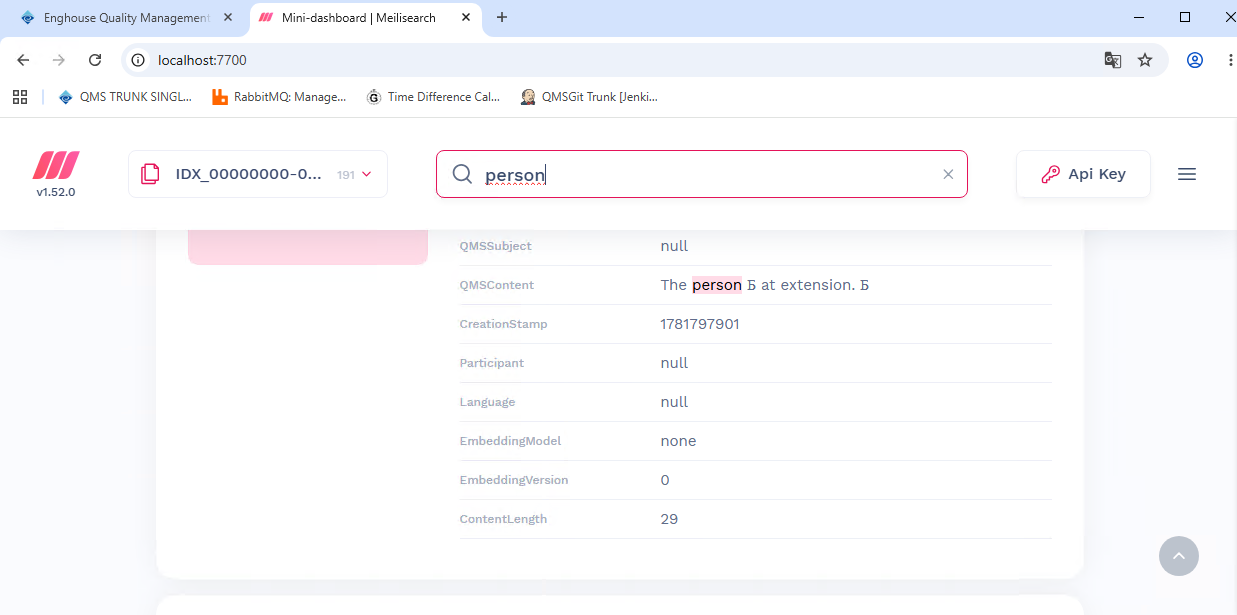
Meilisearch includes its own built-in mini-dashboard, which can be used at any time to confirm the instance is up and to inspect indexes and documents directly. To use it, browse to http://<meilisearch-host>:7700 from the Meilisearch host itself:
Updating Meilisearch
The QMS Installer/Updater doesn’t update an already-installed Meilisearch instance - the "QMS Meilisearch Service" checkbox described earlier only applies the first time Meilisearch is installed. To update Meilisearch to a newer version afterward, run MeilisearchSetup.msi again on whichever machine Meilisearch is actually installed on - the same procedure applies whether that’s the QMS Data Service machine or a separate remote machine.
Running the installer again upgrades the Meilisearch binary in place without changing the existing meiliservice.xml - the current MASTER_KEY and other configuration are preserved, so there’s no need to update anything in QMS’s General Settings afterward.
Meilisearch itself is launched with the --upgrade-db option already configured in meiliservice.xml. Because of this, once the newer binary is in place and the "QMS Meilisearch Service" restarts, Meilisearch automatically detects that its existing data was created by an older version and upgrades it in place before resuming normal operation - a dump export/import isn’t needed for a routine version update.
-
Search stays available while the upgrade runs. Any new documents queued for indexing during this time simply wait until the upgrade finishes before Meilisearch processes them.
-
If the upgrade fails, or is cancelled, Meilisearch automatically rolls the database back to its state from before the upgrade started.
-
This automatic, in-place upgrade only works when the existing data was created by Meilisearch v1.12 or later. If it isn’t, Meilisearch fails to start and reports that a dump-based migration is required instead - see Migrating data.
|
As good practice before any update that includes a newer Meilisearch version, back up the Meilisearch data folder ( |
|
There’s only ever one Meilisearch instance per QMS installation, regardless of whether it’s installed on the Data Service machine or on a separate remote machine. Every tenant configured to use full text search shares that same instance, each with its own isolated index. |