Call Recording Service Installer
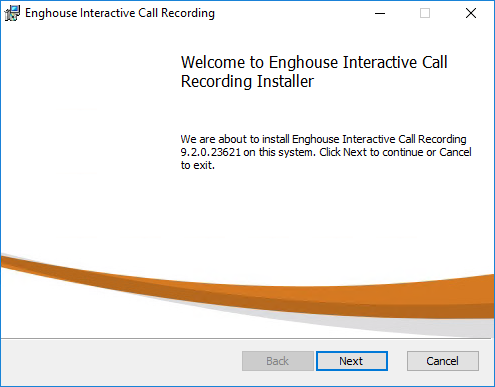
If the Call Recording Service is selected, the installer runs through a series of screens to install the Call Recording Service. The first screen you will see is a Welcome screen. Simply click the 'Next' button to proceed.
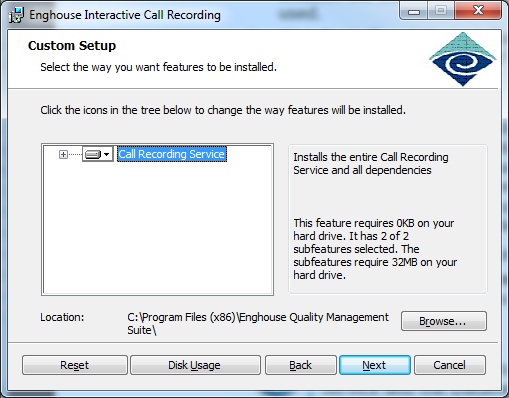
The Custom Setup screen is very similar to the one described in the Data Service. There are multiple buttons on this screen described below:
-
Click the 'Reset' button if you want to revert to default settings.
-
Click the 'Disk Usage' button to view the amount of diskspace required and available for the installation of selected features.
-
Click the 'Back' button to return to the previous page.
-
Click the 'Next' button to proceed with the installation.
-
Click the 'Cancel' button to discontinue the Data Service installation.
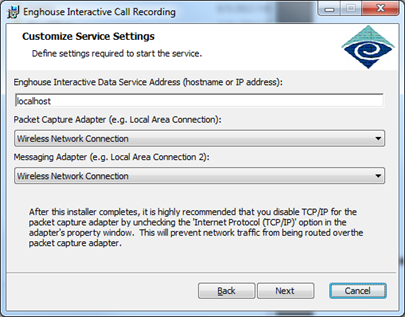
The Customize Service Settings screen fills in information to properly configure the Call Recording Service. In the Enghouse Interactive Data Service Address field, enter the appropriate hostname or IP address where the Data Service is installed. If both components are installed on the same server, 'localhost' can be used.
The Packet Capture Adapter and Messaging Adapter drop-down menus will include an alphabetically sorted list of adapters. Choose the appropriate adapter for both. Once the items are completed, click the 'Next' button to continue.
| On Call Recording servers that have a second network adapter installed as a dedicated packet capture device, it is highly recommended that you disable TCP/IP for that adapter. This will prevent network traffic from being routed over the packet capture adapter. To do this, uncheck the Internet Protocol (TCP/IP) option(s) in the adapters properties dialog (available via Windows Network Connections configuration). |
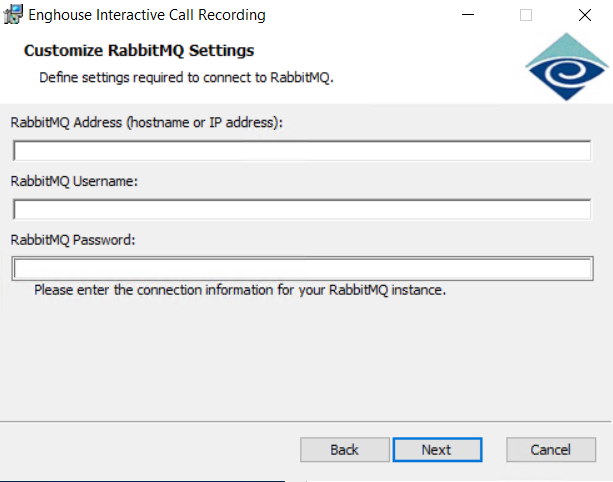
Next, the Customize RabbitMQ Settings Page fills in information to properly configure the Call Recording Service to communicate with RabbitMQ. In the RabbitMQ Address field enter the appropraite hostname or IP address where RabbitMQ is installed. In the RabbitMQ UserName and RabbitMQ Password fields enter the username and password used to access RabbitMQ.
-
Click the 'Back' button to return to the previous page.
-
Click the 'Next' button to proceed with the installation.
-
Click the 'Cancel' button to discontinue the Call Recording Service installation.
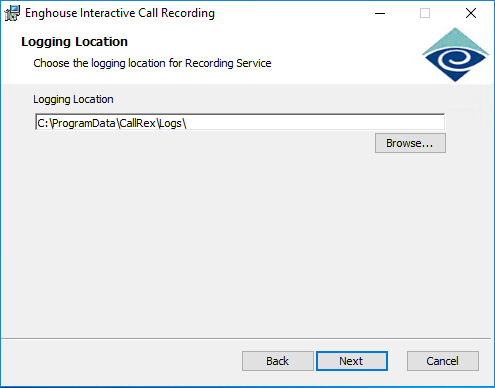
Next, you will be given the opportunity to configure the logging location or accept the default (C:\ProgramData\CallRex\Logs). Be aware that the log files can grow quite large.
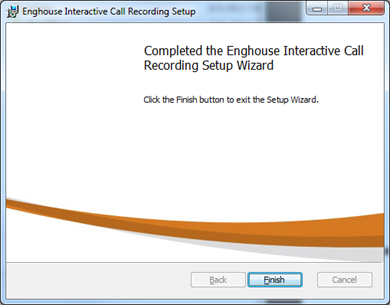
The next screen includes an 'Install' button. Click that when ready to complete the Call Recording Service installation. Once the install completes, a screen will indicate that the installation successfully completed.