Configure Azure VM Windows OS
Once the VM Settings have been configured, you need to configure some Windows settings. First, add firewall rules to the server to open the Teams ports that we configured in the VM Settings. To do that you will need to connect to the VM using RDP and open an elevated (Administrator) PowerShell instance to run the following commands (change the port information if you are not using the default ports used above):
New-NetFirewallRule -displayname 'QMS Teams Bot Media' -direction inbound -action allow -protocol tcp -LocalPort 8900
New-NetFirewallRule -displayname 'QMS Teams Bot Call Control' -direction inbound -action allow -protocol tcp -LocalPort 8901
Next, you need to obtain an SSL certificate for the VM to use to secure the Teams ports as Teams requires both the Call Control and Media ports to be secured, and will only communicate with a trusted endpoint. The SSL certificate must meet the following criteria:
-
The SSL certificate must be in .PFX format (not .CER) and include the private key information. Only CSP-stored certificates are supported by the Microsoft media platform, CNG/KSP certificates are not supported.
-
The SSL certificate must be issued by a public trusted Certificate Authority that is listed as a Participant in the Microsoft Trusted Root Program (https://ccadb-public.secure.force.com/microsoft/IncludedCACertificateReportForMSFT)
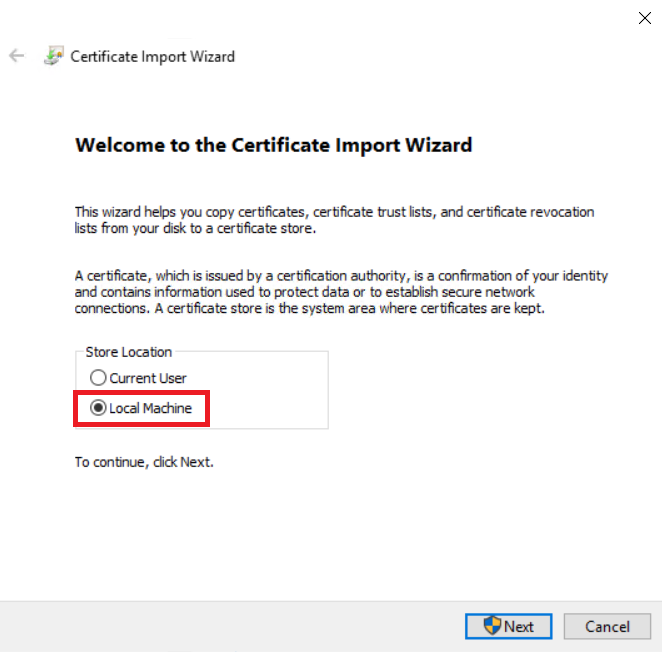
After the certificate has been generated, you will need to import the .PFX certificate into the Personal store for the local machine on the QMS Azure VM. To do this, right click on the .PFX file and select "Install PFX". This will take you to the opening Certificate Import page, where you will select Local Machine and click Next:
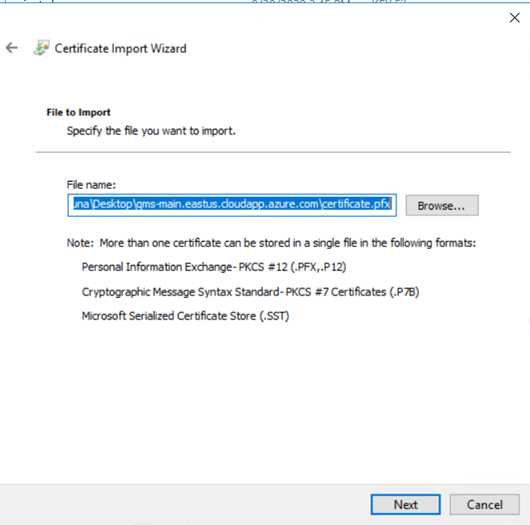
Next, verify that the correct file is displayed for import and click Next:
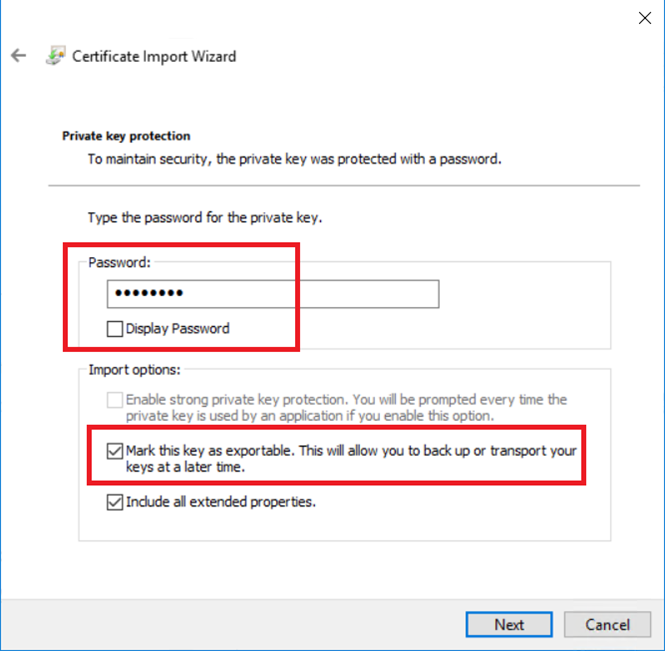
Next, enter the password for the private key and make sure the "Mark this key as exportable" option is selected and click Next:
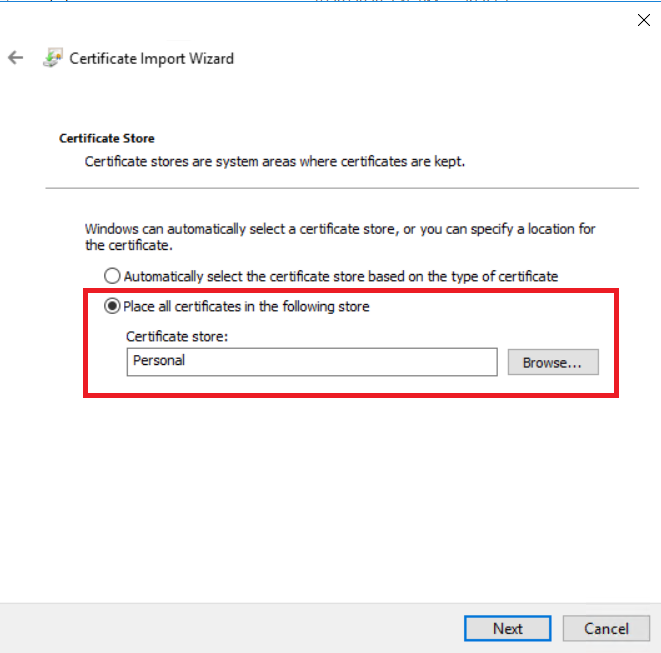
Next, select the "Personal" store as the location to place the certificate and click Next:
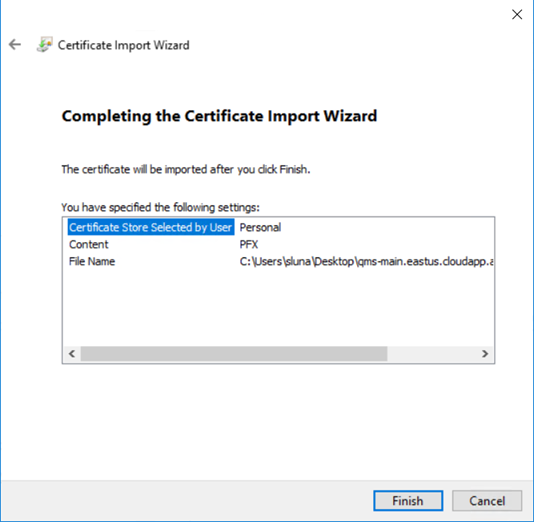
Finally, verify the information on the Completing the Certificate Import Wizard page and click Finish:
Once the certificate has been imported it will need to be bound to the Teams ports that we configured in the VM settings. To do this you will need to open an elevated (Administrator) command prompt and run the following two commands (change the port information if you are not using the default ports used above):
netsh http add sslcert ipport=0.0.0.0:8900 certhash=<Thumbprint of the Certificate> appid={00000000-0000-0000-0000-000000000000}
netsh http add sslcert ipport=0.0.0.0:8901 certhash=<Thumbprint of the Certificate> appid={00000000-0000-0000-0000-000000000000}
In the future, when the certificate has expired and a new one is issued. You will need to remove the existing certificate bound to the ports and bind the new certificate with the same two commands above. You can remove the existing certificate from the ports using the two commands below:
netsh http delete sslcert ipport=0.0.0.0:8900
netsh http delete sslcert ipport=0.0.0.0:8901