Mediant SBC Configuration
Configuring the Mediant device to use SipRec with the QMS product involves:
-
Creating an IP Group and an associated Proxy Set that defines the QMS recorder
-
Administering the SIP Recording Settings
-
Creating SIP Recording Rules
-
Creating Message Manipulation sets
The steps presented here walk through the step-up via an AudioCodes branded web interface. The same configuration can be accomplished via the device’s command line interface.
The topology view below depicts a simple setup with an IP Group (#1) defined on the WAN side of the device that represents a SIP trunk communicating with an external PBX or the PSTN. The LAN side of the device has two configured IP Groups, one being an internal PBX, the other, IP Group (#2) being the QMS call recorder. This configuration will walk through:
-
How to create the IP Group representing the QMS call recorder
-
How to create a SIP Recording Rule that will record calls between the external and internal PBXs
-
How to preserve select SIP headers from the original call and attach them to the SipRec conversation the SBC has with the QMS server to support appropriate metadata being associated with the recorded calls in QMS
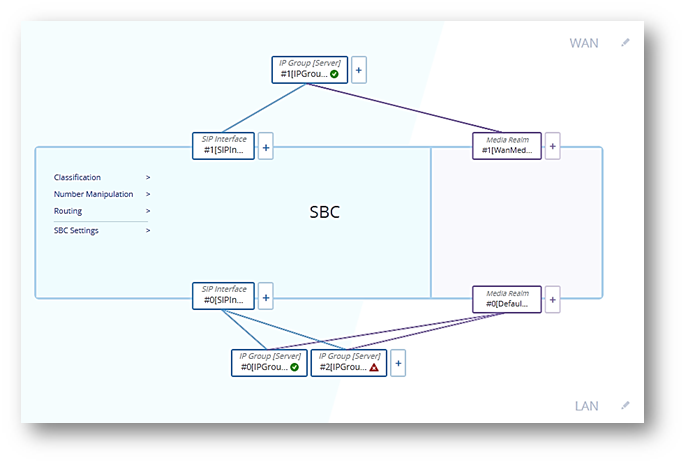
QMS Call Recorder IP Group Setup
Setting up the IP Group that communicates with the QMS server requires creating a Proxy Set and its associated IP Group. A Proxy Set defines the address (IP address or FQDN) and transport type of a SIP server.
-
Select Core Entities → Proxy Sets → New to create a new Proxy Set. In this example, we’ve named it ProxySet_SRSBuffalo.
-
Set it to use the SIP interface on the Lan side of the device, and set the Keep alive behavior to check the SRS’s status using the OPTIONS method. Enabling the Keep alive behavior gives a visual indication of connectivity in the topology view, a green circle or a red triangle.
-
After creating and applying the new Proxy Set we select it in the table view of Proxy Sets and click the "Proxy Address 0 items" link at the bottom of the description.
-
Click the +New button to add a new address, in this case we’ve set the address to 192.168.3.115:5066 and set the transport to UDP.
-
Click Apply. The port named as part of the proxy address should match the port configured in QMS as the SIP Port in the Call Recording Service settings. The transport type should be UDP.
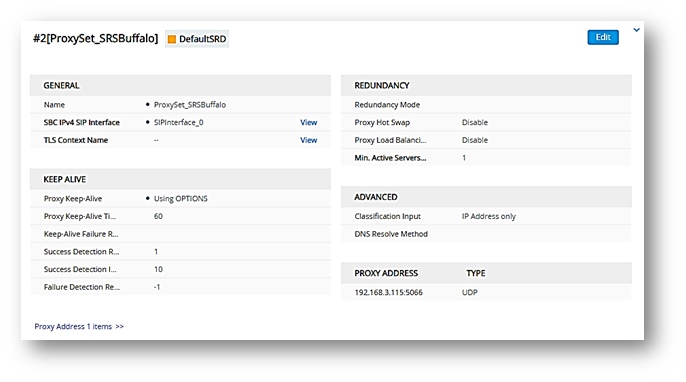
Proxy Set Detail
-
Next, create the IP Group associated with the newly created Proxy Set. An IP Group represents a SIP entity in the network with which the SBC communicates, the group is the QMS server in this case.
-
Select Core Entities → IP Groups → New to create a new IP Group. In this example, we’ve named it IPGroupSRSBuffalo,
-
Set the Location to Down (Lan side),
-
Set the Type to Server,
-
Set the Proxy Set to name the Proxy Set we created in the previous step and assigned it to the Media Realm on the LAN side of the device.
-
Click Apply.
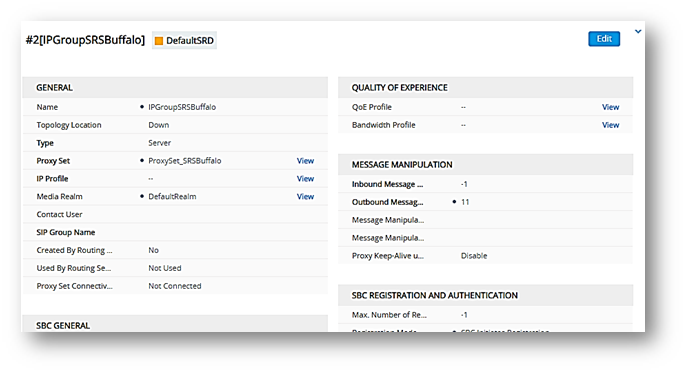
IP Group Detail (partial)
Sip Recording Settings
There is one pertinent SIP Recordings settings at SIP Recording → SIP Recording Settings. The SIP Recording Metadata Format should be set to RFC 7865.
Sip Recording Rules
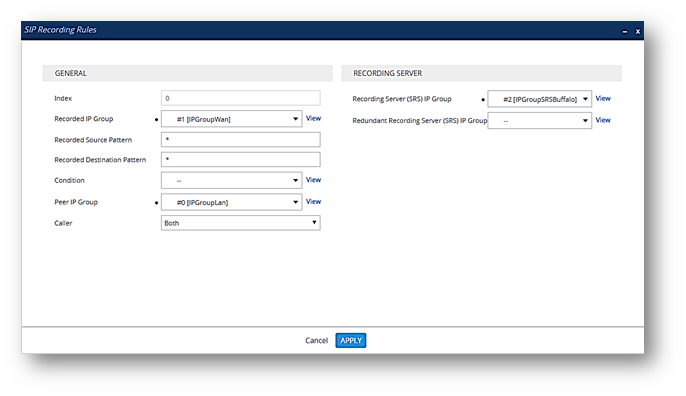
Sip Recording Rules are created to qualify a subset of call traffic for recording, a recording rule defines a call route that should be recorded. A SIP Recording Rule names two IP Groups that serve as the SIP endpoints for the call, and a third IP Group that names the location of the Call Recorder, the QMS installation in this case. Generally, a SIP Recording Rule says if a call traverses the SBC between IP Group A and IP Group B record the call at IP Group C. To create a recording rule:
-
Select SIP Recording → SIP Recording Settings → New. In this example we’ve set the Recorded IP group to the IP Group defined on the WAN side of the device that represents a SIP trunk communicating with an external PBX. We’ve set the Peer IP Group to the IP Group defined on the LAN side of the device that communicates with the internal PBX. We’ve elected to record both parties in the call and named the Recording Server IP Group as the IP Group we created that addresses the QMS server.
-
Click Apply. This rule with record any calls traversing the SBC between the external PBX and the internal PBX.
Message Manipulation
Message Manipulations are rules that describe transformations that are applied to SIP messages. Individual manipulations are assigned to a group of sequenced manipulations by assigning each manipulation in the group a common Manipulation Set ID. Finally, these groups of manipulation rules are assigned to IP Groups to treat either messages arriving at that IP Group or messages being sent from that IP Group. In this case message manipulations are used to allow select SIP header to be copied from the SIP Invites that establish calls we intend to record to the SIP Invites sent to the QMS recorder. The headers are attached as new non-standard headers on the Invites sent to the QMS recorder and are used by QMS to gather metadata for the call, for example whether the call was inbound or outbound with respect to a user. Two Message Manipulation sets are required, the first set persists the headers we are interested in from any Invite that is inbound or outbound to an IP Group named as a Recorded or Peer IP Group in any of the recording rules we define. The second manipulation set takes these persisted headers and appends them to any Invite bound for the IP Group that names the QMS recorder. There are four headers that will be treated by these two rule sets, To, From, Remote-Party-ID and Diversion.
Create a new message manipulation by selecting Message Manipulation → Message Manipulations → New. First, create the 4 rules to persist the 4 headers of interest; To, From, Remote-Party-ID and Diversion. The Manipulation Set ID will be the same for all 4 persistence rules, the Message Type will be Invite.Request for each, and the Action Type will be Modify for each. The Name, Condition, Action Subject and Action Value will differ for each rule. These values are set as follows:
| Name | Condition | Action Subject | Action Value |
|---|---|---|---|
QMSPersistTo |
Header.To exists |
Var.Session.0 |
Header.To |
QMSPersistFrom |
Header.From exists |
Var.Session.1 |
Header.From |
QMSPersistRPID |
Header.Remote-Party-ID exists |
Var.Session.2 |
Header.Remote-Party-ID |
QMSPersistDiversion |
Header.Diversion exists |
Var.Session.3 |
Header.Diversion |
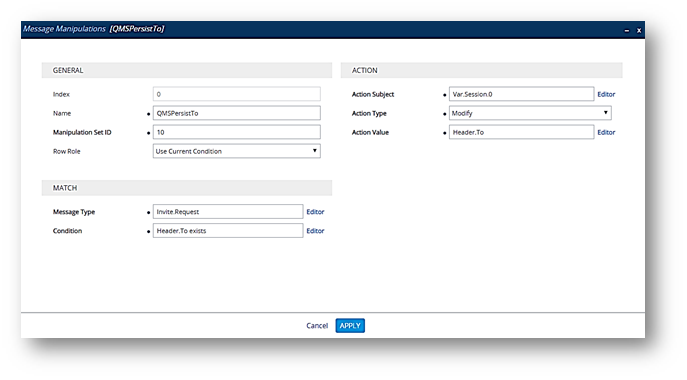
Persist To Header Rule
Next, create the 4 rules to attach the 4 persisted headers to the Invite bound for the QMS recorder. The Manipulation Set ID will be the same for all 4 attachment rules, the Message Type will be Invite.Request for each and the Action Type will be Add for each. The Name, Condition, Action Subject and Action Value will differ for each rule. These values are set as follows:
| Name | Condition | Action Subject | Action Value |
|---|---|---|---|
QMSAttachTo |
Var.Session.0 != '' ** |
Header.OriginatingTo |
Var.Session.0 |
QMSAttachFrom |
Var.Session.1 != '' |
Header.OriginatingFrom |
Var.Session.1 |
QMSAttachRPID |
Var.Session.2 != '' |
Header.Remote-Party-ID |
Var.Session.2 |
QMSAttachDiversion |
Var.Session.3 != '' |
Header.Diversion |
Var.Session.3 |
-
'' is two single quotes.
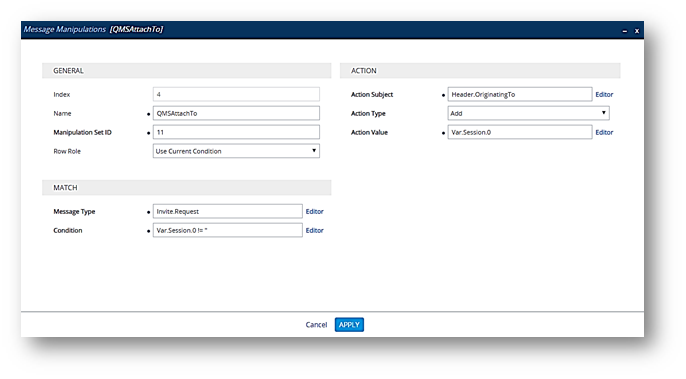
Attach To Header Rule
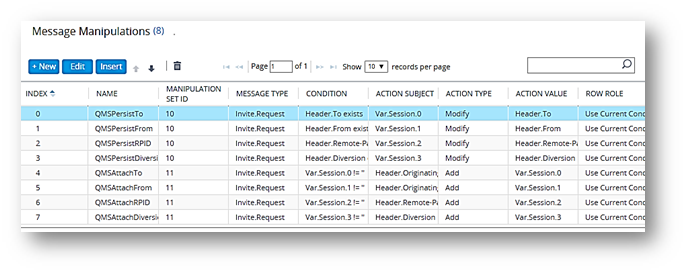
The Message Manipulation set will look similar to this, note there are 4 persistence rules all with Manipulation Set ID 10 and 4 attachment rules all with Manipulation Set ID 11.
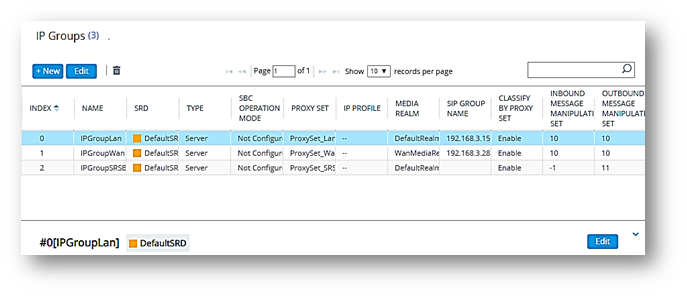
Finally, the Manipulation Set IDs, 10 and 11 in this example need to be assigned to IP Groups. The Manipulation Set ID of the persistence group is assigned as the inbound and outbound manipulation set on any IP Group appearing as a Recorded or Peer IP Group in any SIP Recording Rule. The Manipulation Set ID of the attachment group is assigned as the outbound manipulation set on the IP Group naming the QMS recorder.
Select Core Entities → IP Groups, select an entry in the table and click edit to assign manipulation sets.
If the QMS recorder will be setup to create dual channel recordings QMS requires knowing which IP group triggered a particular recording. The name of a triggering IP group is the SIP Group Name configured on the IP Group named as the Recorded IP Group of the SIP Recording Rule that triggered a recording. Many triggering IP groups can be named in a comma separated list. The triggering IP groups can be sent to QMS on a per call basis using a Message Manipulation or can be set on a per installation basis in the configuration of a QMS CallRecording service that’s recording the call.
To administer the setting at the CallRecording service edit the service configuration file for the CallRecordingService.exe in the QMS installation folder. Add the SiprecMediantSBCTriggeringGroupname tag naming any triggering IP groups. In the example below two groups are named.
<Control SiprecMediantSBCTriggeringGroupname="enghouse.com, 10.1.1.20" />To administer the setting from the SBC using a Message Manipulation create a new Message Manipulation with the same Manipulation Set ID as the attachment Manipulations defined above. The details of the Manipulation follow where enghouse.com and 10.1.1.20 are named as triggering groups.
-
Name: QMSAttachRecordedIPGroupName
-
Match → Message Type: Invite.Request
-
Action → Action Subject: Header.Recorded-IP-Group-Name
-
Action → Action Type: Add
-
Action → Action Value: 'enghouse.com, 10.1.1.20'
Optional Settings
There are a handful of settings applicable to the Mediant SBC that can be set to remedy observed deficiencies in certain call scenarios. These scenarios would typically be identified and the settings tuned by QMS support personnel.
-
The SBC has been observed to hold a call in some scenarios by setting the inactive attribute in an invite’s SDP, but will leave the stream in the siprec markup in the sending state. Enabling HoldsUsingSDP in the Advanced Settings section of the Recording Service tab will hold these calls at QMS.
-
The SBC has been observed to duplicate SipRec sessions in certain consultive transfer scenarios involving two internal parties and an external party which causes duplicate recordings in QMS where the call audio is the same, but the metadata differs. Enabling EquateRecordingsOnParticipantSetMatch in the Advanced Settings section of the Recording Service tab prevents these duplicates.
-
The SBC has been observed to not explicitly signal the exit of a recorded party in the SipRec sessions in certain consultive transfer scenarios involving two internal parties and an external party which causes the call length to be incorrect in QMS. Enabling ReplaceFromWithPAIOnReinivite in the Advanced Settings section of the Recording Service tab prevents this condition.