Screen Recording
Screen Recording Architecture
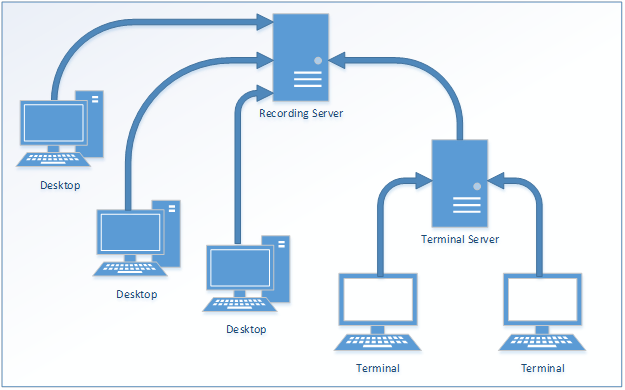
The QMS Screen Recording add-on component does either full-screen or application specific recording of what is shown on the display of the computer of the recorded user. A small piece of software called the QMS Desktop Agent must be deployed to each desktop computer that a QMS user could potentially use. In the case of a Terminal Services environment, the QMS Desktop Agent must be installed on the Windows Terminal Server itself. The QMS Desktop Agent is responsible for (if configured to do so):
-
Recording full screen video during calls
-
Continuing to record for a certain duration after the call ends
-
Making recordings of the screen during the time between calls
-
Recording all windows for specific applications, each as a separate video
-
Transferring recordings to the QMS Recording Service
-
Providing live screen monitoring streams to monitoring clients
It should be noted that as of QMS 7.0, Windows Terminal Services and Citrix XenDesktop are the only supported VDI environments for screen recording.
Live screen monitoring requires additional client software to be installed on the supervisor’s (or whoever is viewing the monitoring) desktop. The client software must be able to directly connect to the target user’s desktop PC. Live screen monitoring is not supported in Windows Terminal Services or Citrix environments. If the customer is concerned about live screen monitoring or is in an area where notification is required by law for live screen monitoring, the feature may be disabled by using a firewall to block inbound connections to TCP port 8426 on the recorded users' desktops.
QMS users who have screen recording licenses may move to any computer with the Desktop Agent software installed and still be recorded. They are identified by their Windows login account, which must be unique to them.
It is recommended that the customer have a software deployment system or strategy in place to avoid having to manually install the QMS Desktop Agent on each desktop. A deployment tool is provided and can be installed separately (see Screen Recording Installation Guide for more details), however the deployment tool requires special configuration and is not recommended unless the customer does not already have a way to deploy software automatically. Installation can also be scripted using msiexec.exe as long as the target computers already have the necessary prerequisites installed (.NET 4.5 Full and Visual C++ 2012 x86 redistributable). The command for scripting is as follows:
msiexec.exe /i DesktopAgent.msi REBOOT=ReallySuppress /qn SERVER=<server> ENABLESSL=<ssl> SECRET=<secret>Where <server> must be replaced by the address of the QMS Call Recording Service.
Where <ssl> is 1 if enabling SSL or 0 otherwise
Where <secret> is set to the secret value configured for the QMS Call Recording Service or blank if no secret will be used
System Requirements
Software Requirements
The QMS Desktop Agent can be installed on any of the following operating systems:
-
Microsoft Windows Server 2025
-
Microsoft Windows Server 2022
-
Microsoft Windows Server 2019
-
Microsoft Windows Server 2016
-
Microsoft Windows 11
-
Microsoft Windows 10
The QMS Desktop Agent also requires the following components to be installed on the hosts on which it will run:
-
.NET Framework 4.5 Full
-
Microsoft Windows Desktop Experience
Hardware Requirements
It is recommended that hardware used is above the minimum requirements for each supported operating system. Doing full screen Recording can require a substantial amount of CPU and is highly dependent on factors such as number of monitors, screen resolution, and the amount of activity on the screen. For single monitor displays with low levels of screen activity, the CPU usage required for screen recording should fall within a reasonable level but may still exceed 10 or 15% of the CPU depending on hardware.
|
If you are using Screen Recording please contact Enghouse so that we can evaluate your specific minimum requirements. |
Storage Requirements
Screen Recordings are only temporarily stored on the user’s desktop PC and are transferred to the QMS Recording Service as soon as possible. The QMS Recording Service requires enough space to store these files, in additional to storage required for call recordings. A good rule is to plan for at least 30 times the amount of space for screen recordings as are planned for call recordings. Like the amount of CPU usage, the amount of storage space required is highly variable based on a number of factors.
VDI Server Sizing
The minimum requirements listed above for a single physical PC to run the QMS Desktop Agent also apply to a single VDI desktop. Sizing estimates for a VDI server must therefore take into account the cumulative resource needs of all of the VDI desktops it serves that will be running the QMS Desktop Agent. For example, take a VDI host server that has 8 CPU cores, which serves out 16 VDI desktops. If each VDI desktop is allocated one CPU core, and all 16 desktops are running simultaneously, each of the 8 CPU cores is shared between two of the desktops. The QMS Desktop Agent running on each desktop could take up to 15% or more of the CPU resources, depending on activity on the screen, so each CPU core on the host server could be running at 30% or more just due to the QMS Desktop Agents. An extrapolation of this example can be made over the total number of CPU cores in the host server hardware to determine how many simultaneous VDI desktops, running the QMS Desktop Agent, can be allocated by the host server.