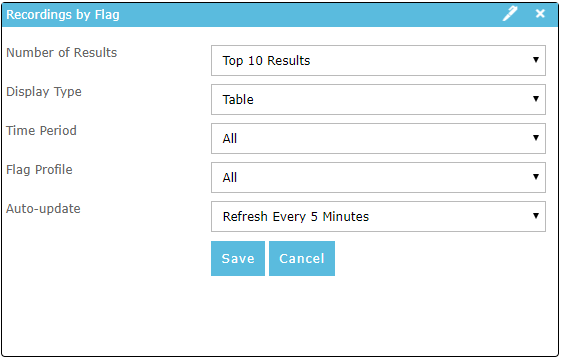
Customizing the Dashboard
Additional Dashboards can be created and/or Dashboard Widgets can be added, removed or customized to suit. The customization of this page is specific to the current logged on user and is saved as part of the user’s preferences for the client.
Adding a new Dashboard
-
Click the
 button (top-right of page) to add a new dashboard and click OK on the confirmation dialog.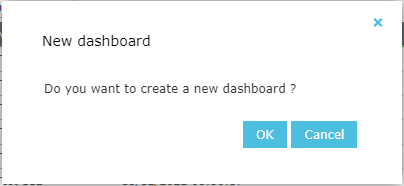
-
A new dashboard tab will appear in the tab strip (initially empty)
Renaming a Dashboard
-
Click the
 button (top-right of page) to rename the currently selected dashboard, enter a new name in the Rename Dashboard dialog box and click OK.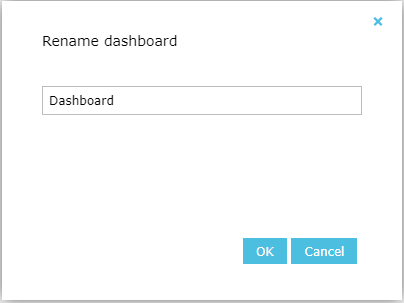
Deleting a Dashboard
-
Click the
 button (top-right of page) to delete the currently selected dashboard and click OK on the confirmation dialog.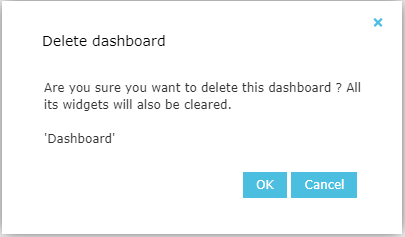
Adding a Widget
-
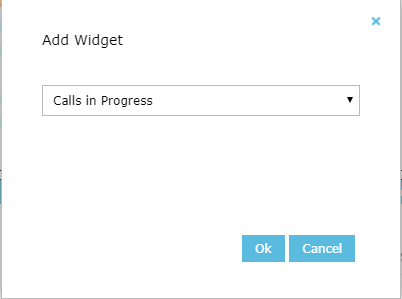
Click the Add Widget button (top-right of page)
-
Select the widget to add from the dialog that displays. You can add the same widget more than once to your dashboard.
Removing a Widget
-
Click the
 button on the widget you wish to remove. The widget will no longer be shown on your dashboard.