Secure RabbitMQ Communications (Optional)
QMS uses a RabbitMQ message broker for internal messaging between the Data Service, Call Recording Service, and Media Processing Service. By default this connection uses a plaintext (unencrypted) AMQP connection on port 5672. QMS can optionally be configured to connect to RabbitMQ over a TLS/SSL-encrypted channel.
Securing RabbitMQ is a two-part process:
-
Enable TLS on the RabbitMQ broker itself.
-
Enable SSL for the RabbitMQ connection in each QMS service using the Advanced button of the QMSConfig tool.
|
When RabbitMQ and all QMS services are installed on the same server, the broker traffic never leaves the machine and there is little value in encrypting it. This option is primarily relevant to distributed deployments where RabbitMQ is reached over the network. |
Part 1 – Enable TLS on the RabbitMQ Broker
RabbitMQ runs on Erlang and accepts certificate material only as PEM files on disk – it cannot read the Windows certificate store. You will need three PEM files: a CA/chain certificate, the server certificate, and the server private key.
Obtain the certificate as PEM files
If your server certificate lives in the Windows certificate store, export it to PFX (the private key must be exportable – see the Troubleshooting section below) and convert it with OpenSSL:
openssl pkcs12 -in server.pfx -nocerts -nodes -out server_key.pem
openssl pkcs12 -in server.pfx -clcerts -nokeys -out server_certificate.pem
openssl pkcs12 -in server.pfx -cacerts -nokeys -out ca_certificate.pem-
If OpenSSL 3.x cannot read a Windows-produced PFX, add the -legacy flag.
-
The -nodes option writes the key unencrypted, so restrict server_key.pem with file permissions (RabbitMQ service account and administrators only).
-
Certificate renewal is manual – every rotation requires re-export and re-conversion.
Configure the broker
RabbitMQ reads its settings from a rabbitmq.conf file in a configuration directory that varies with how RabbitMQ was installed and which account the service runs under. The most reliable way to find the correct location is to ask RabbitMQ itself using the management UI:
-
Open the management UI in a web browser on the RabbitMQ server (by default http://localhost:15672/) and log in.
-
Select the Overview tab and, under Nodes, click the node name to open the node detail page.
-
Locate the Config file(s) entry, which shows the full path of the configuration file(s) RabbitMQ is currently using.
If a rabbitmq.conf file already exists at that location, edit it. If the entry shows no configuration file, or points to a file that does not yet exist, create a new rabbitmq.conf at the indicated path.
The recommended configuration disables the plaintext listener and hosts the TLS listener on the standard 5672 port. This keeps the QMS-side port setting at its default, so only SSL needs to be enabled in each service – no port change is required.
# Disable the plaintext AMQP listener and host TLS on the standard 5672 port
listeners.tcp = none
listeners.ssl.default = 5672

ssl_options.cacertfile = C:/rabbitmq/certs/ca_certificate.pem
ssl_options.certfile   = C:/rabbitmq/certs/server_certificate.pem
ssl_options.keyfile    = C:/rabbitmq/certs/server_key.pem

ssl_options.verify                 = verify_none
ssl_options.fail_if_no_peer_cert = false

ssl_options.versions.1 = tlsv1.3
ssl_options.versions.2 = tlsv1.2|
Use forward slashes in the certificate paths even on Windows. Backslashes are treated as escape characters and will fail to parse. |
|
Disabling the plaintext listener affects only the AMQP port. It does not touch the RabbitMQ management UI (15672), inter-node clustering (25672), or epmd (4369). |
Restart and verify
Restart the RabbitMQ Windows service, then verify the TLS listener using the RabbitMQ management UI:
-
Open the management UI in a web browser on the RabbitMQ server (by default http://localhost:15672/) and log in.
-
Select the Overview tab and expand the Ports and contexts section.
-
Confirm that a listener for protocol amqp/ssl is present on port 5672, and that there is no plaintext amqp listener.
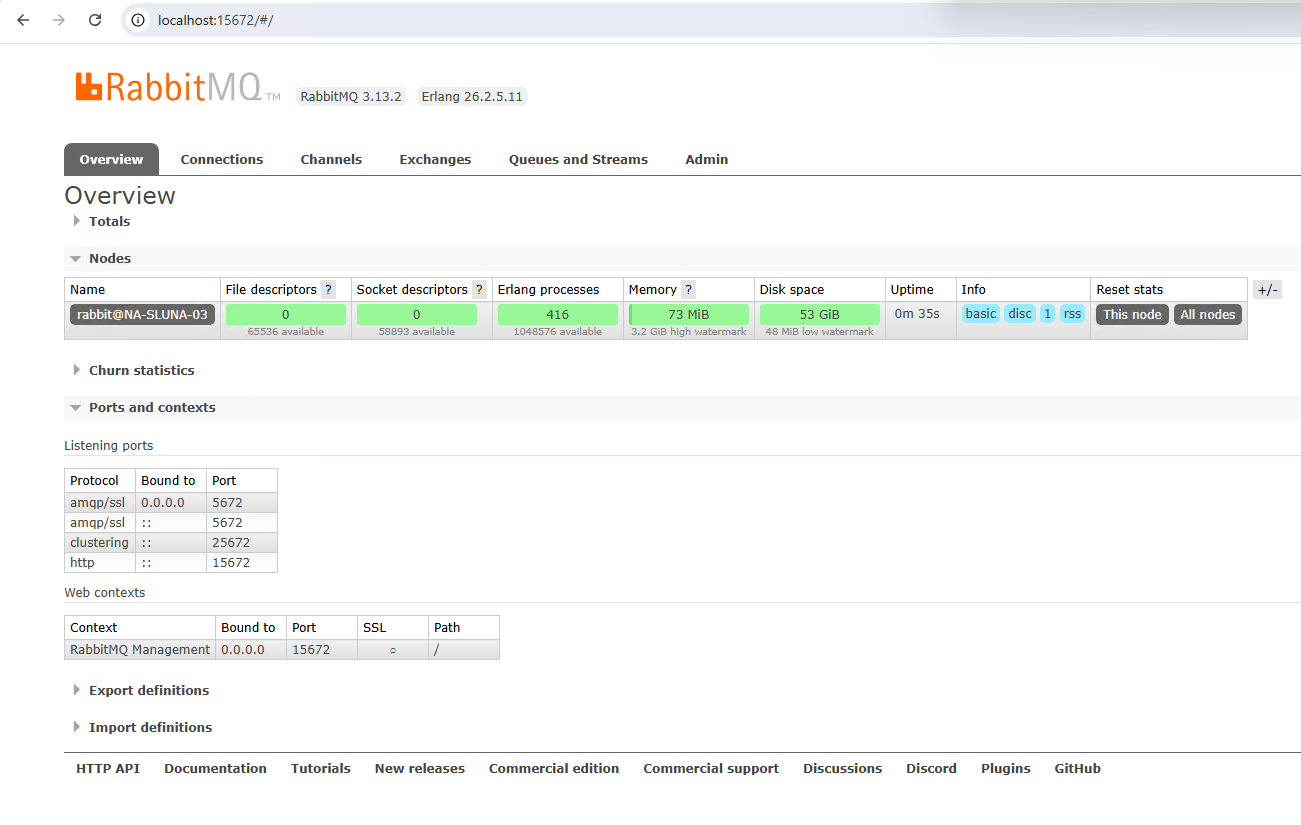
Because the plaintext listener has been disabled, every QMS service must have SSL enabled (Part 2) before it can reconnect to the broker.
|
The Overview tab confirms that the TLS listener exists, but not that a given connection is encrypted. Once the QMS services are connecting (after Part 2), you can confirm encryption end-to-end on the Connections tab, which shows an SSL/TLS indicator for each connection. Clicking a connection displays the negotiated protocol version, cipher, and peer certificate details. |
|
The QMS services validate the broker’s certificate against the Windows machine trust store and against the expected server name. The certificate presented by RabbitMQ must (a) chain to a Certificate Authority trusted by each QMS service host, and (b) have a Subject (CN) or Subject Alternative Name (SAN) that matches the server name configured in Part 2. |
Part 2 – Enable SSL in the QMS Services
The RabbitMQ connection settings are stored in the configuration of each service and are edited through the Advanced button in the QMSConfig tool.
The Advanced Settings window presents a separate tab for each QMS service installed on that server – for example, Data Service, Call Recording Service, and Media Processing Service. The tabs shown depend on what is installed on the machine; a service that is not installed there will not have a tab. When a server hosts more than one service, apply the settings on each relevant tab.
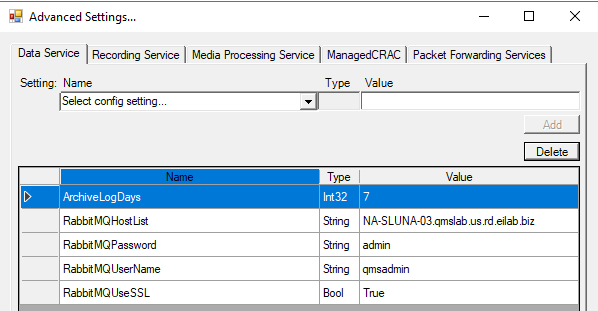
On each server running the Data Service, Call Recording Service, or Media Processing Service:
-
Launch QMSConfig.exe from the QMS installation folder and click the Advanced button.
-
Select the tab for the service you are configuring.
-
If a setting already appears in the grid, edit its value directly. To add a setting that is not yet present, choose it from the "Select config setting…" drop-down, enter the value, and click Add.
-
Repeat for each RabbitMQ setting below, then close the Advanced window and restart the service for the changes to take effect.
-
RabbitMQUseSSL – Set to true to enable a TLS-encrypted connection to RabbitMQ (QMS negotiates TLS 1.2 or TLS 1.3). When absent or false, QMS connects in plaintext (default behavior).
-
RabbitMQSSLServerNameList – The server name(s) used for TLS certificate validation. This setting mirrors the structure of the existing RabbitMQHostList setting position-for-position (see the note below). Each entry must match the Subject (CN) or a SAN of the certificate presented by the broker at the corresponding host. If an entry is left blank, QMS falls back to the host name at the same position in RabbitMQHostList.
-
RabbitMQPort – The broker port. With the recommended broker setup (TLS on 5672), this can be left at its default of 5672. Change it only if you hosted the TLS listener on a non-standard port such as 5671.
-
|
RabbitMQSSLServerNameList mirrors RabbitMQHostList: RabbitMQHostList is a semicolon-delimited list of broker hosts, and RabbitMQSSLServerNameList supplies the matching certificate name for each of those hosts, in the same order.
In most deployments the broker runs on the data server(s) and its certificate is issued to that server’s FQDN, so each SSL server name simply equals the corresponding host entry. You only need values that differ from RabbitMQHostList when the host list uses something that will not match the certificate – an IP address, a short name, or a load-balancer alias. |
Troubleshooting
-
Cannot export the certificate to a PFX, or the "export private key" option is unavailable – the certificate was not created with an exportable private key. Export-PfxCertificate and the MMC Certificate Export Wizard can only produce a usable PFX (one containing the private key) when the key is marked exportable. If the existing certificate’s key is not exportable, you cannot convert it to the PEM files RabbitMQ needs; request or generate a new certificate with the private key marked exportable (for a template-based enrollment this is the "Allow private key to be exported" option), then repeat the export and conversion steps.
-
Handshake fails with a certificate-name mismatch – the value in RabbitMQSSLServerNameList (or the host name it falls back to) does not match the broker certificate’s CN/SAN. RabbitMQHostList controls where the socket connects; RabbitMQSSLServerNameList controls what identity the certificate must prove – these can legitimately differ (for example, connecting by IP or through a load balancer).
-
Handshake fails with an untrusted-certificate error – the CA that signed the broker certificate is not trusted on the QMS host. Import the CA/root certificate into the host’s Local Machine trust store.
-
Broker won’t start after editing config – check for backslashes in the PEM paths (use forward slashes); if using advanced.config instead of rabbitmq.conf, ensure the file ends with a trailing period.