Installation
To install QMS as a multi-tenant instance complete the following steps.
-
Obtain a license key which includes the multi-tenant feature.
-
Install Quality Management Suite components as per the installation procedure for a standard (non-tenanted) system.
-
When accessing the QMS web client for the first time (use default admin account), you will be required to enter the license key. Enter a license key which includes the multi-tenant feature.
-
The following objects will be automatically created for you: a master tenant called "Provider", a default tenant called "Tenant 1", a default security profile called "Tenant Administrator" and a new user account called "Global Administrator".
-
To continue the setup you must now logout of the QMS web client (the default admin account is now a member of the first tenant) and log back in as the Global Administrator account (username: globaladmin, password: globaladmin)
-
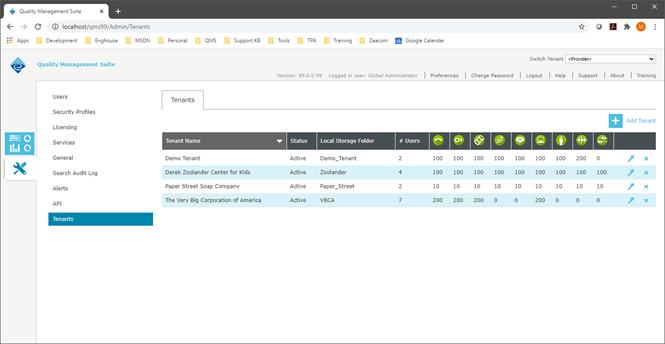
The Global Administrator user account is a member of the Provider master tenant. With this account you can:
-
Create new tenants
-
Allocate licenses to tenants
-
Add users to tenants
-
Add recording profiles to tenants
Please refer to the web help for more information on these topics.
-
-
The QMS licenses that have been applied to your system belong to the provider, but these can now be allocated to individual tenants. When allocating licenses to a tenant, the available count is reduced by the amount allocated to the tenant.
|
Multi-tenancy can be enabled on an existing mature system by overwriting the current license with a new one that includes the multi-tenant feature. All existing users, recordings, evaluations and other data will be migrated into a single default tenant. The default tenant "Tenant 1" can then be renamed later. |
|
The process of migrating a single instance system into a multi-tenant instanced system cannot be reversed (i.e. you cannot go back to a single instance system). |