QMS Configuration
Enabling the Full Text Search feature in QMS requires that some type of text recording feature is licensed, either TextRecording or CallTranscription. When properly licensed, a "Full Text Search and Index Settings" header appears on the "General" configuration tab in QMS. Once Meilisearch itself is installed (see Installation), configuring the feature in QMS is a matter of entering the connection details for that instance.
Enabling the feature
-
Select the checkbox to "Enable full text indexing and search."
-
Enter the "Meilisearch Endpoint" - the URL of the Meilisearch instance, for example
http://localhost:7700if Meilisearch is installed on the same machine as the QMS Data Service, orhttp://<remote-host>:7700if it’s installed on a separate remote machine. In a high availability deployment, see High availability installations. -
Enter the "Meilisearch Master Key" - the value retrieved from
meiliservice.xmlon the Meilisearch host during installation. -
Save the General Settings page.
This configuration - the endpoint and master key - is common to the whole installation, since there’s only ever one Meilisearch instance. Whether full text search is actually used, however, can be chosen for each tenant individually (list of tenants → tenant).
Multi-tenant installations
On a multi-tenant provider installation, the endpoint and master key are configured once, at the provider level:
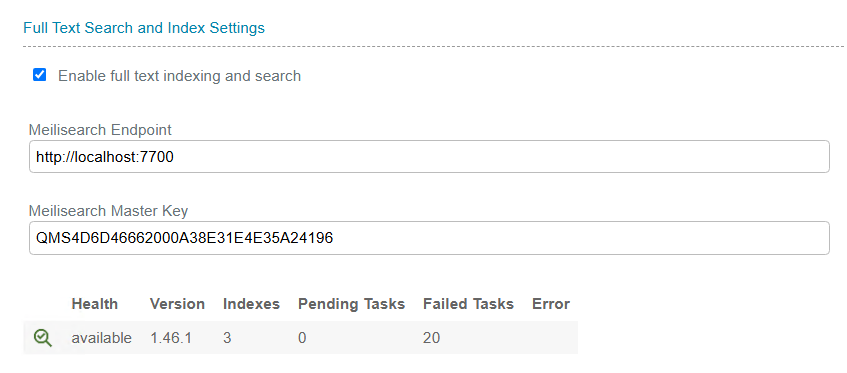
Alongside the endpoint and master key, a status row reports on the Meilisearch instance as a whole:
Health |
Whether QMS can currently reach the Meilisearch instance. Reads "available" when the instance responds normally. |
Version |
The Meilisearch version currently running. |
Indexes |
The total number of indexes on the instance - one per tenant with full text search enabled. |
Pending Tasks |
The number of Meilisearch tasks (document additions, index operations) still queued or in progress. |
Failed Tasks |
The number of Meilisearch tasks that have failed. |
Error |
Populated if QMS can’t successfully reach or authenticate against the configured endpoint. See Troubleshooting the Error field below. |
Each individual tenant then has its own full text search statistics and reindexing controls, on that tenant’s own configuration page - see QMS Reindex.
Single-tenant installations
On a single-tenant installation, there’s no separate provider-level page - the endpoint/master key configuration and the tenant’s own statistics and reindexing controls all appear together on the same page:
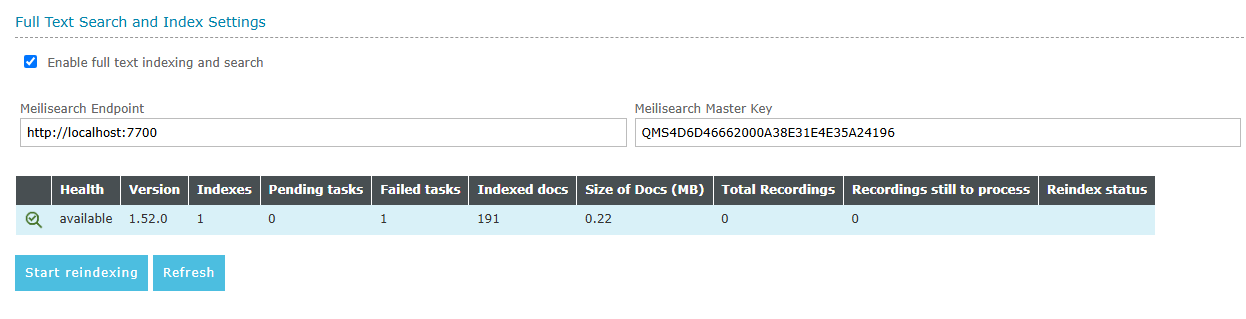
The connection fields and health status shown are the same ones described above for multi-tenant installations, just combined onto a single page. For the reindexing controls and per-tenant statistics also shown on this page, see QMS Reindex.
High availability installations
In a high availability (HA) deployment, the primary and secondary Data Services of a Data Service node must both use the same Meilisearch instance. Install Meilisearch only once, and do not install a separate instance on each node. Two instances would hold different indexes, and the search results would depend on which Data Service was active.
Because both Data Services must reach the same instance, the "Meilisearch Endpoint" cannot refer to the local machine:
-
Use the fully qualified domain name (FQDN) of the machine where Meilisearch is installed, for example
http://meilisearch.example.com:7700. -
Do not use
localhost,127.0.0.1or a short host name. These only resolve correctly from one of the machines. -
Confirm that the FQDN resolves, and that port 7700 is reachable, from both Data Service machines.
Enter the "Meilisearch Endpoint" and "Meilisearch Master Key" as described in Enabling the feature. The values are common to the whole installation, so they are configured only once.
|
Meilisearch is not itself made highly available by QMS. Install it on a separate, remote machine that is not one of the Data Service nodes, as described in the Installation section of this document, so that a Data Service failover does not make full text search unavailable. The firewall on that machine must allow inbound TCP traffic on port 7700 from both Data Service machines, and from every Media Processing Service. |
Troubleshooting the Error field
If the "Error" field is populated, QMS was unable to successfully communicate with the configured Meilisearch endpoint. Common values and what they indicate:
Invalid API key (401 Unauthorized) |
The "Meilisearch Master Key" configured in QMS doesn’t match the master key Meilisearch is actually running with. Re-check the value in |
API key does not have permission (403 Forbidden) |
The configured key was recognized by Meilisearch but doesn’t have sufficient permissions. |
Connection error |
QMS couldn’t reach the configured endpoint at all - check that Meilisearch’s Windows service is running, and that the endpoint’s host and port are correct. |
Request timed out |
The endpoint was reachable but didn’t respond in time - check for network issues between the QMS Data Service and the Meilisearch host, or firewall rules if Meilisearch is on a remote machine. |
Invalid URI |
The "Meilisearch Endpoint" field isn’t a well-formed URL. |
|
If a Meilisearch installation on a remote machine is unreachable, confirm the firewall on that machine allows inbound TCP traffic on port 7700 from every host running a QMS Data Service or Media Processing Service, as described in the Installation section of this document. |