Editing Calibration Jobs
Users with the Create Scorecard permission in their Security Profile can edit calibration jobs.
To edit calibration jobs, click the  navigation icon and then click the Evaluation Calibration link from the administration sub-menu. The Calibration Jobs tab displays containing the list of calibration jobs. To edit a job, click the
  icon on the job row you wish to edit. A new tab will open containing the calibration job.
Complete the following steps to setup a calibration job:
-
Select a Scorecard or Scorecard Set from the drop down lists of scorecards. Scorecard sets are denoted by this icon

-
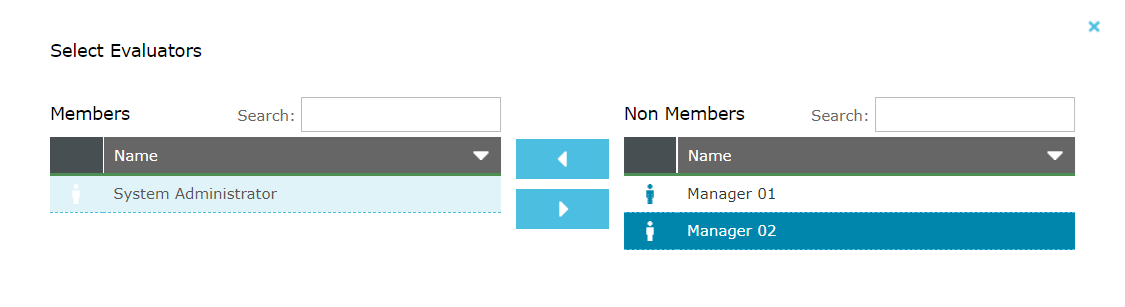
Select the Evaluators you wish to partake in the calibration exercise. The select evaluators dialog has two panels. The panel on the right is the list of eligible evaluators that have not been selected yet, and the panel on the left are the currently selected evaluators. To move an evaluator from one side to the other, select the evaluator and click the appropriate arrow button. When finished, click the OK button and the calibration job tab will refresh and show the selected evaluators.
-
Set the Calibration Options. These include:
-
Use the Show selector to switch the answer format between Raw Score (where every question has a score between 0 and 1), or Answer Value (the actual answer from the scorecard).
-
Set a Due Date when the calibration evaluations are expected to be completed by.
-
Set a Reminder option to send a reminder email to the evaluators x hours before the due date.
-
-
Optionally add one or more media files to the calibration job (a calibration job can be performed without media if you wish). Any media selected will be attached to every evaluation created when the job is started. Click the Add Media button and the tab contents will be replaced with a media search screen. You can exit out of this screen at any time by clicking the Close button and you will be returned to the calibration job screen. Use the media search filters to locate a media file you wish to attach, then click the Add Media button from the context menu that appears when clicking on the media file in the search results. This will close the add media pane and the calibration job will be updated to show the new media file. This process can be repeated for multiple media files.

Media can be previewed by clicking the
 button which will open a media player in a new dialog window.
Media can be removed from the calibration job by clicking the
 button.
 -
When you are ready to begin the calibration exercise click the Start button. Once started, the scorecard, media file and evaluators cannot be changed. These buttons will be disabled, e.g.

When a calibration job is started, individual evaluations will be created for every evaluator selected. If the evaluator has an email address in their user profile, and your QMS system is setup to send emails (see General Settings) then an email will be sent to the evaluator with a direct link to the evaluation.
-
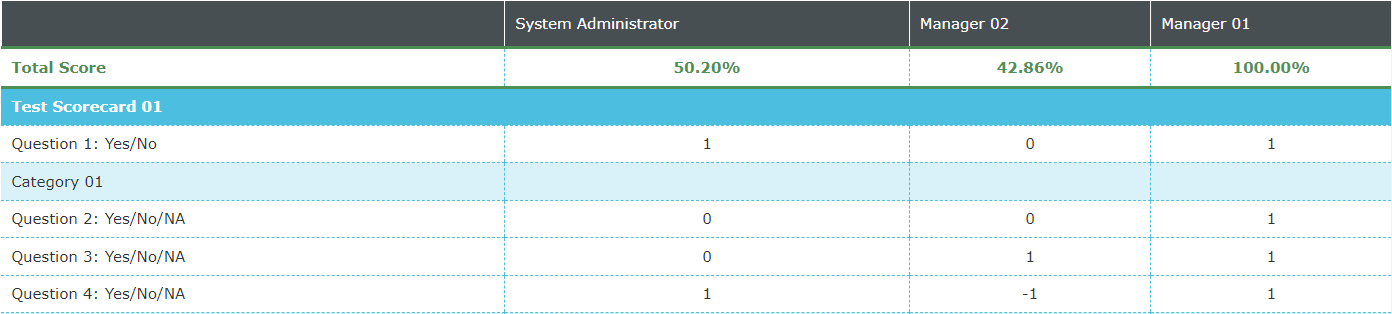
Once the evaluators have competed their evaluations the scores will be shown in the calibration job tab. The first row of the table will show the total evaluation score for each evaluator, and the subsequent rows will show the scores for each question.
See also: