Adding a Notification
To Add a Login Notification, click the navigation  icon and then click the Login Notifications link from the administration sub-menu.
Pressing the Add button/link  , will create a new notification.
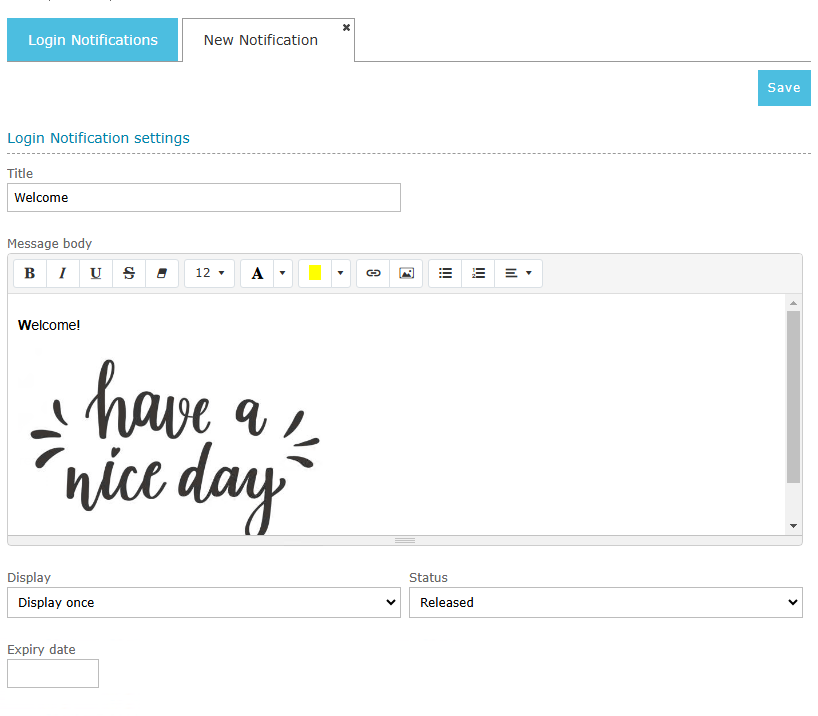
-
Title: Title for the notification. This is a required field.
-
Message body: This is the notification body. Text can be formatted as needed and images can be used.
-
Display: There are three options for the Display field:
-
Display once: The notification will only be presented once to the users.
-
Display until user discards it: The notification will be presented every time a user logs in until he discards it
-
Display always: User will see this notification whenever he performs the login.
-
-
Status: There are three options for the notification status:
-
Draft: Notification still not completed. Will not be present to users.
-
Released: Notification is completed and will be present to users when they login.
-
Archived: Notification will no longer be presented to users.
-
-
Expiry Date: The notification will be available for the users until the Expiry Date is reached (UTC). This is an optional field. If empty, it will never expire.
-
Press Save to save all your changes.
See Also: